


1Password now supports native verification code setup in macOS
Setting up verification codes just got easier in 1Password for Mac! When enabling two-factor authentication for an account, just right-click the QR code or click the setup link to add it directly to 1Password. Once set up, 1Password can autofill your verification codes whenever you need them. No copying and pasting required!
How to enable the feature
-
Open System Settings → General → AutoFill & Passwords
-
Set Set Up Codes In to 1Password
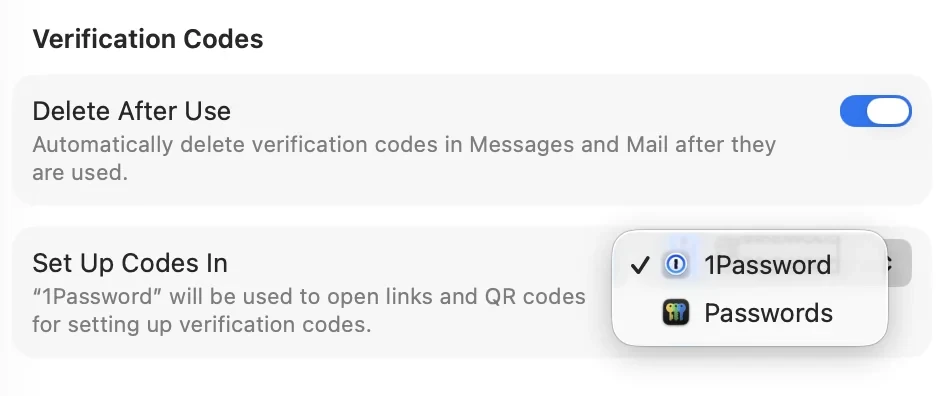
Open System Settings → General → AutoFill & Passwords to set up codes into 1Password
Use it with a QR code in Safari
-
On the site’s verification code setup page on Safari, right click the QR code
-
Choose Set Up Verification Code
-
1Password opens a list of existing logins
-
Choose the item you would want to add the verification code to or choose New item to create a login with the site name, username and the code already filled in
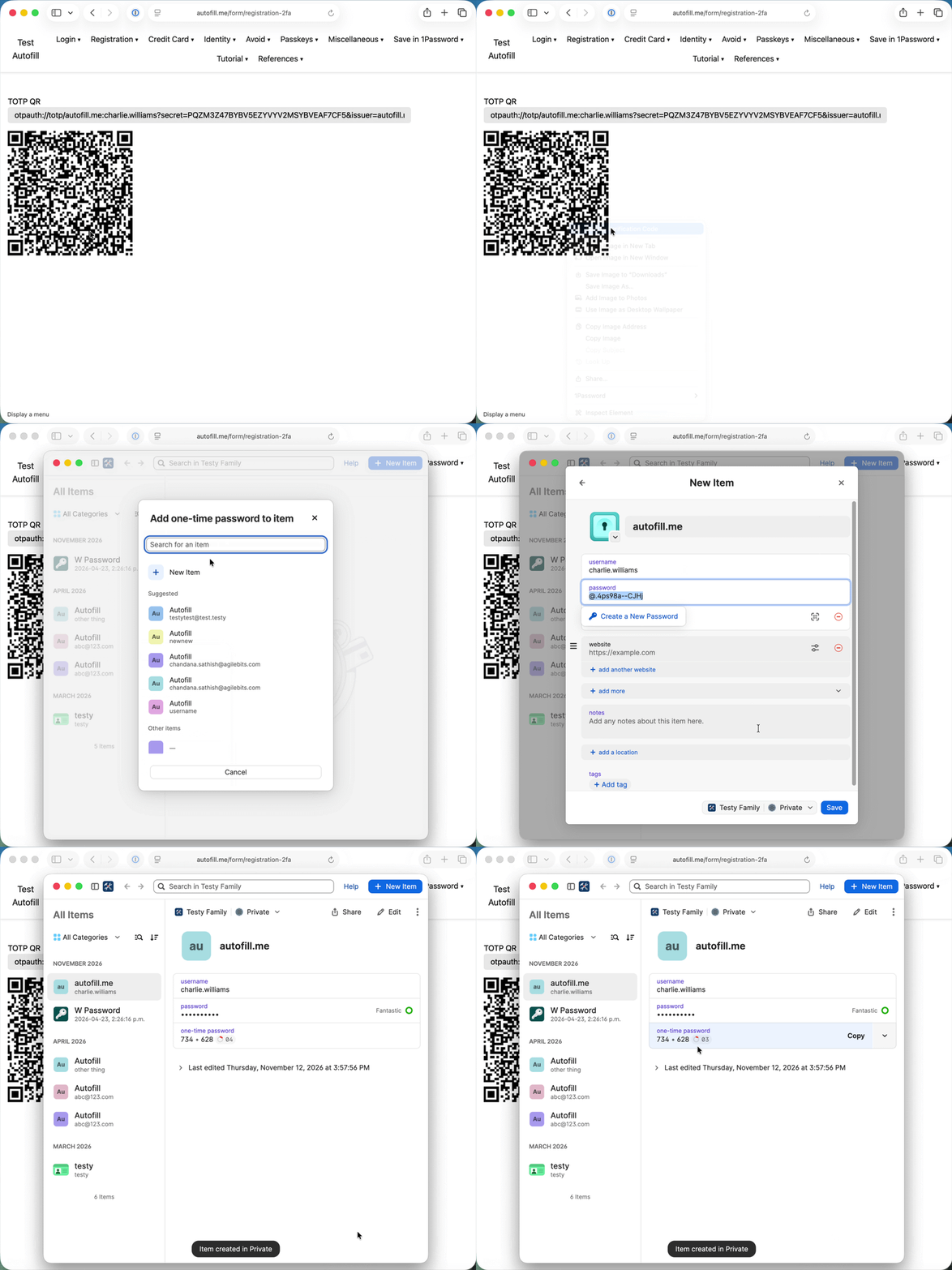
Use it with a setup link in any browser
-
Click or paste the site’s verification code setup link in your browser
-
Allow your browser to open 1Password
-
1Password opens a list of existing logins
-
Choose the item you would want to add the verification code to or choose New item to create a login with the site name, username and the code already filled in
Try it out and let us know what you think!