


October 2026 at 1Password: Personal AI agent integrations, Login item improvements, and more!
All treats, no tricks this month 🎃. Experimenting with personal AI agents? 1Password for Agents keeps your credentials and secrets secure while they work. You'll also find new alerts on your Login items, and a new feature in 1Password for Android makes autofill more reliable.
Introducing 1Password for Agents
This month we announced 1Password for Agents, a platform that helps personal AI agents work for you while keeping the credentials they need secure. To complete their tasks, agents increasingly need access to your online accounts. With our new platform, your agent can request to use a credential stored in one of your vaults. If you approve the request, 1Password directly autofills the credentials in the destination site, ensuring the agent doesn’t have access to them.
Whether you’re planning a trip or ordering thoughtful gifts, 1Password for Agents ensures control and convenience go hand in hand.
Watch the demo below to see how 1Password works with Muse.
You can use 1Password for Agents with:
- Muse: integrations available now across all platforms.
- SpaceXSI Grok Bot: integrations available now across all platforms.
- Town Townie: integrations now available for iOS, Android, Windows, Mac, and Linux.
- Anthropic’s Claude Duet: integrations coming soon.
- OpenAI ChatGPT Work and dots: integrations coming soon.
Additional integrations with other agents are also underway.
These are separate, opt-in integrations that only work when you choose to connect an agent to 1Password. We verify that requests come from authorized partners whose architecture we have reviewed for security, and require authenticated user approval for credential access.
1Password for Agents is currently available at no additional cost for 1Password Individual and Family accounts on 1Password.com. Accounts on 1Password.eu or 1Password.ca aren’t currently supported. Availability, platforms, and capabilities vary by partner integration.
Explore the 1Password for Agents integrations, or read the full announcement for more details.
Login completeness alerts
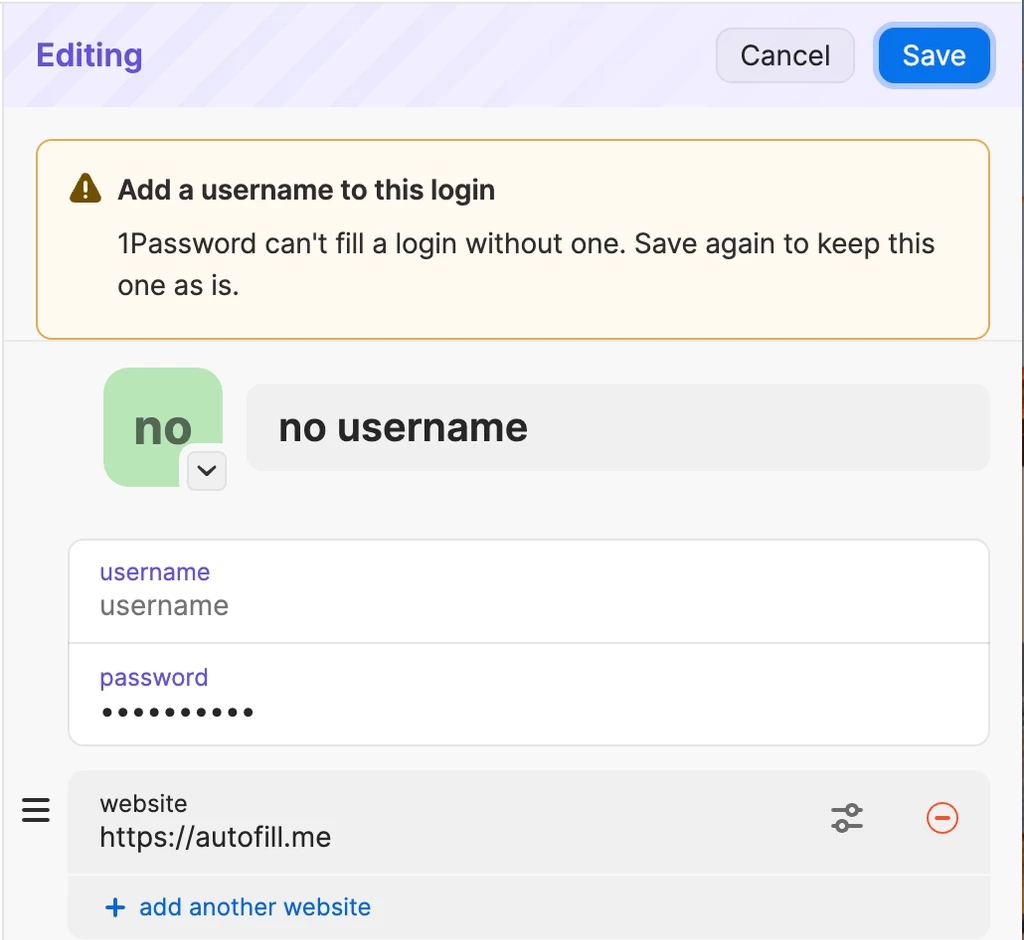
Part of 1Password’s magic is autofill, which fills in your credentials across your devices. To work its best, autofill needs four details in each Login item: a title, username, password, and website. If any of them are missing, a Login can work inconsistently, or fail without an obvious cause.
Now, 1Password will prompt you to add missing fields whenever you create, or edit a Login item. This feature shows up in two key ways:
• A warning in the item editor that identifies any missing fields.
• A prompt when saving to add any missing information, or keep the Login as-is.
1Password for Android starts linking app Logins to websites
In the past, when you used 1Password for Android to create a Login item in an app, it saved an app link but not the corresponding website. For example, if you saved a Login for the Steam app on your Android phone, 1Password wouldn’t suggest it when you later visited the Steam website in your browser.
Now, when you create a Login item in an app, 1Password for Android adds the matching website automatically, creating a seamless sign-in experience.
To confidently add the corresponding websites, 1Password for Android needs to read an app’s Digital Asset Link. Many apps in the Play Store don’t publish one yet, so the new feature won’t work with every Android app. Our team is working to close that gap, so you can use your Login items in more of your apps from day one.
Random but Memorable
From phishing operations to unbridled token use, October was bursting at the seams with Random but Memorable. This month saw three new episodes:
- Episode 17.3: Amy Gebhardt, senior engineering manager at 1Password, explains how to spot shadow AI and runaway AI spend without shutting down useful experiments.
- Episode 17.4: Brad Thies, Founder and CEO of BARR Advisory, shares what auditors now expect you to prove, including that you're adopting AI safely.
- Episode 17.5: Find out how attackers use AI to make sense of the inboxes they break into, and what you can do to protect yours.
Listen to Random but Memorable wherever you get your podcasts, or watch full episodes on YouTube.
Zero-Shot Leaning
Zero-Shot Learning released its season finale this month. While the show will be taking a few weeks off, keep an eye out for the next season’s debut soon.
In this episode, Nancy Wang, 1Password’s former chief technology officer, discusses the limitations LLMS still face with spatial data, and how Niantic Spatial is building a grounding layer to make that data more precise.
Catch up on the Zero-Shot Learning podcast.
Release note highlights
- The sign-in prompt now automatically offers passkeys instead of passwords when a Login item has a passkey saved.
- We’ve fixed an issue where 1Password could show an error if you tried to use your passkey when Windows Hello was turned off.
- We’ve fixed an issue where 1Password could mistake a human verification field for a password field.
- We’ve fixed an issue where 1Password would fill birth dates in the wrong order on sites that show the date format in the field.
- You can now use the Left and Right Arrow keys to move between a Login item’s sign-in methods in the sign-in prompt.
- We’ve fixed an issue where a temporary connection problem could prompt you to set up a recovery code even if you already had one.
- [Mac, Windows, and Linux] If you sign in with Unlock with SSO, you can now export your 1Password data when your administrator allows exports.
- [Mac, Windows, and Linux] 1Password Environments now support up to 25 local .env file destinations per computer.
- [Mac, Windows, and Linux] We’ve fixed an issue where a temporary connection problem could prompt you to set up a recovery code even if you already had one.
- [Mac, Windows, and Linux] The export confirmation screen now includes a clearer warning about storing unencrypted files safely and a link to learn more about exporting your data.
- [Mac] You can now save one-time passwords in 1Password through Autofill on your Mac. In the System Settings app, navigate to General > AutoFill & Passwords > Set Up Codes In and select 1Password.
- [Mac] We’ve fixed an issue where Quick Access sometimes wouldn’t appear over a full-screen app or would open on a different desktop than the one you were using.
- [Android] We’ve simplified the prompt that appears when you’re required to switch to single sign-on, so you can now choose to sign in with your browser or lock 1Password.
- [iOS] We’ve improved the design of the search field on the New Item screen.
- [iOS] When you select the Search tab on iOS 26 or later, the keyboard now automatically appears. Swipe down to dismiss the keyboard or cancel the search to return to the tab you were on before.
- [iOS, and Android] We’ve fixed an issue where you could delete your only working recovery code if you have a 1Password account that signs in with a passkey and you also had an older, inactive recovery code.
- [Android] We’ve fixed an issue where the Autofill pop-up could appear blank after the screen changed size, like when you rotated your device to landscape mode.
- [iOS] We’ve fixed an issue where the Autofill pop-up could appear blank after the screen changed size, like when you rotated your device to landscape mode.