


Secure Snippets (1Password Labs) – Getting Started Guide
If you’d like to test features that are still in development without switching to a beta release, you can turn on exploratory features and share your feedback to help influence the future of 1Password.
- Open and unlock 1Password.
- Select your account or collection at the top of the sidebar > Settings.
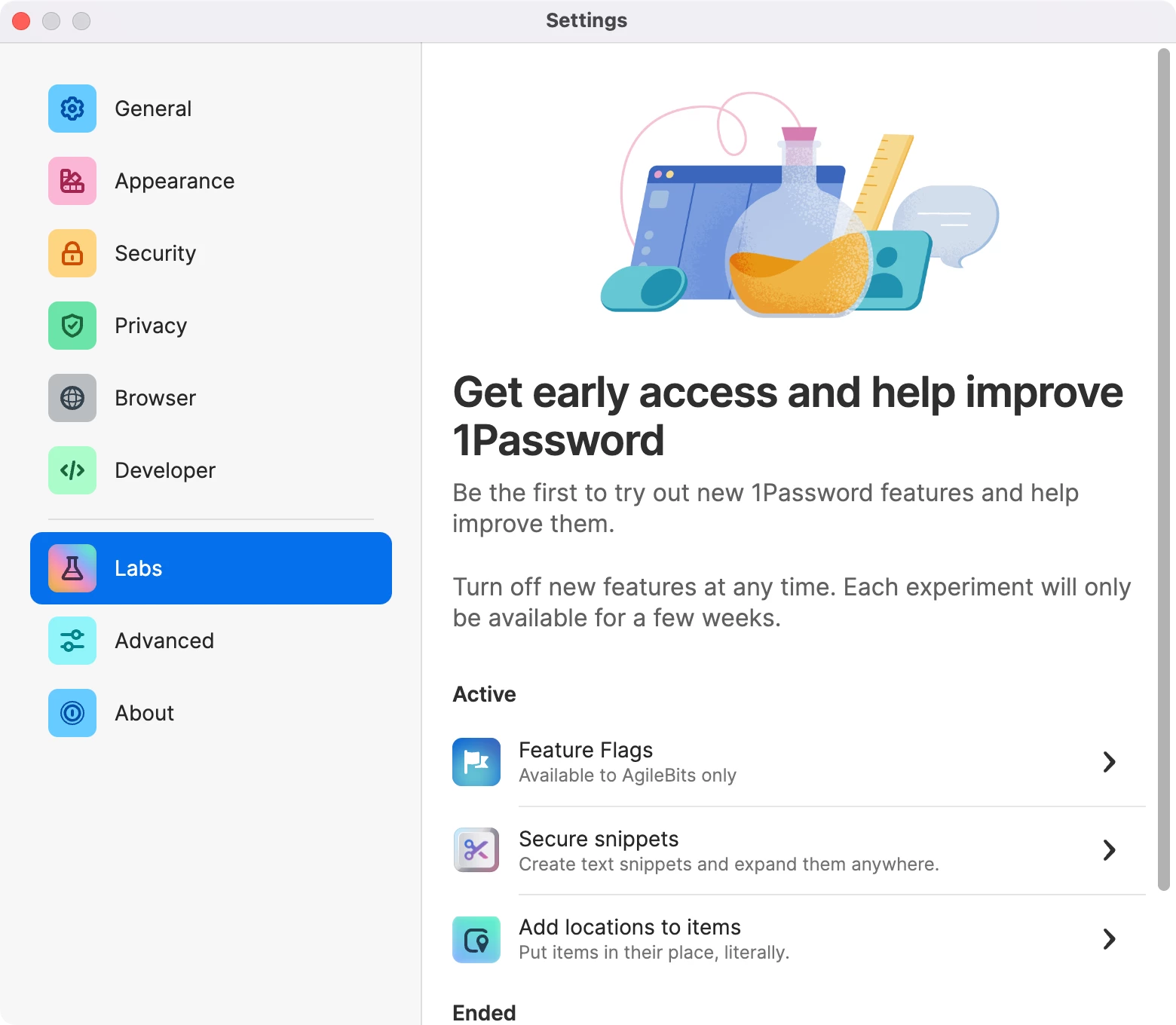
- Select Labs in the sidebar to see a list of the features available for testing.
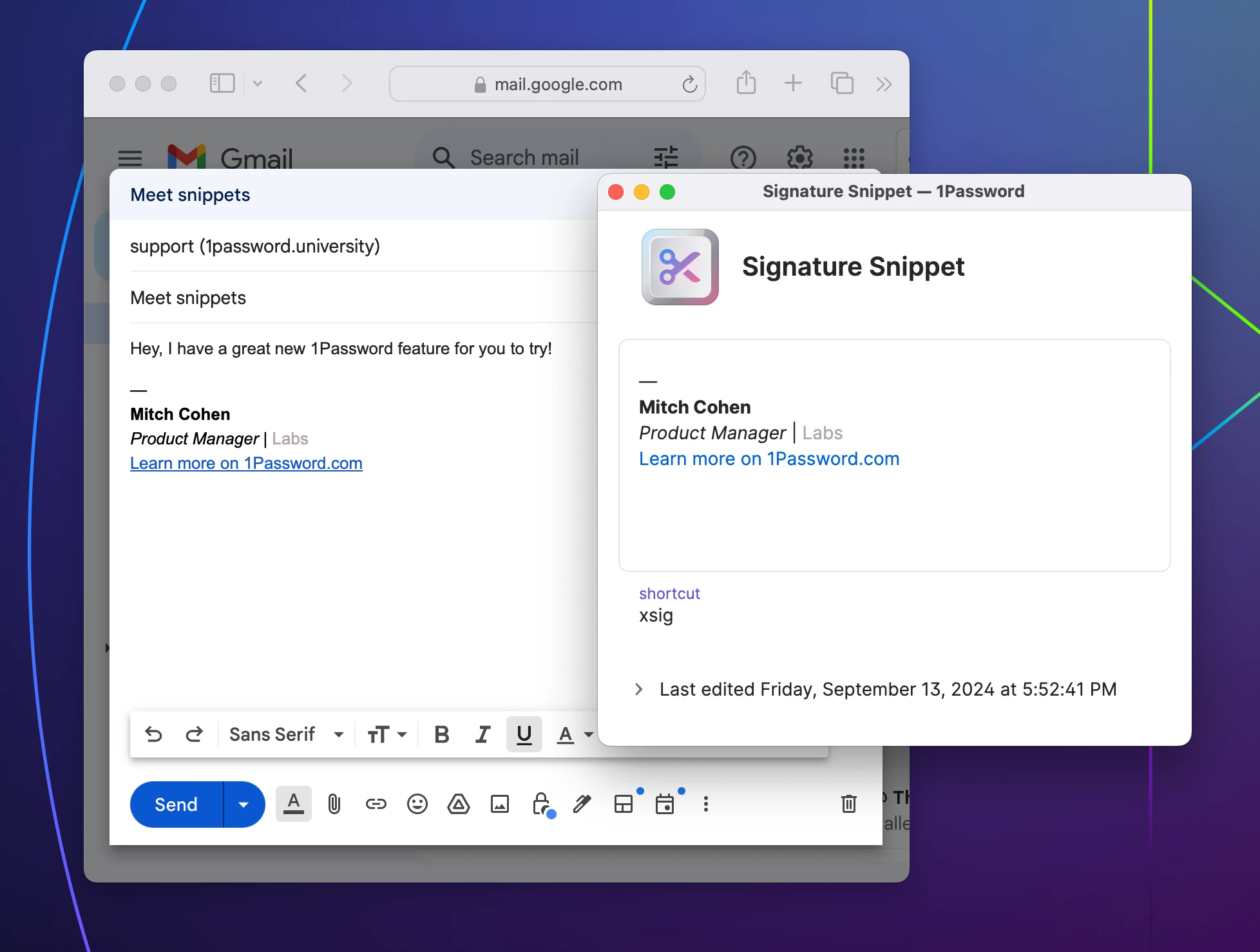
Snippets is one of these features in Labs. With snippets, 1Password can fill any text, anywhere you need it, from a quick signature or link, to full paragraphs with rich formatting, styles, and dynamic variables.
Get started with snippets
Secure snippets requires:
- 1Password for Mac version 8.10.46 or newer
- An individual or family account.
To get started:
- Unlock 1Password and choose Settings > Labs.
- Choose Secure snippets, and select Enable secure snippets.
- Follow the on-screen instructions to enable Accessibility if asked.
Create and edit snippets
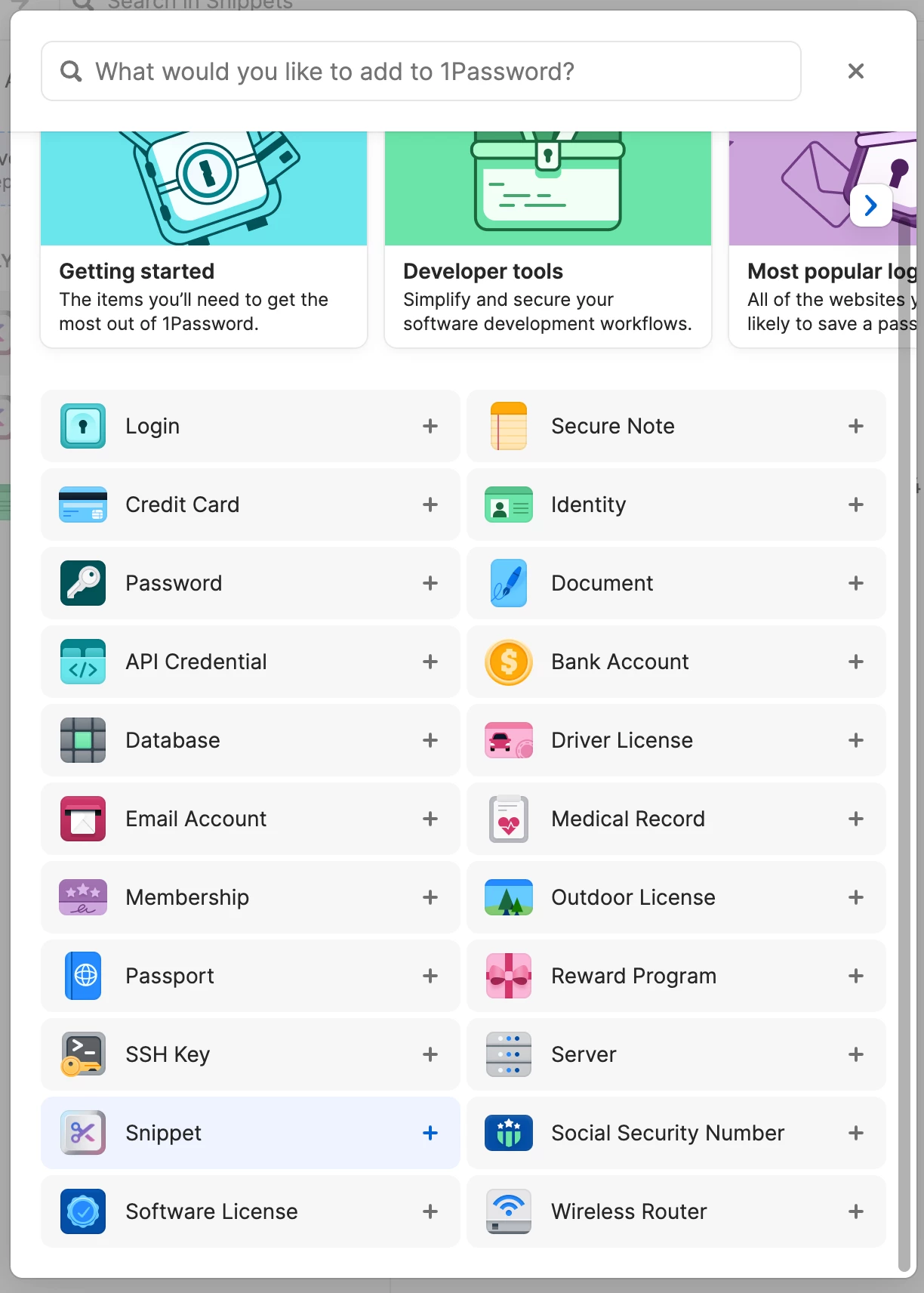
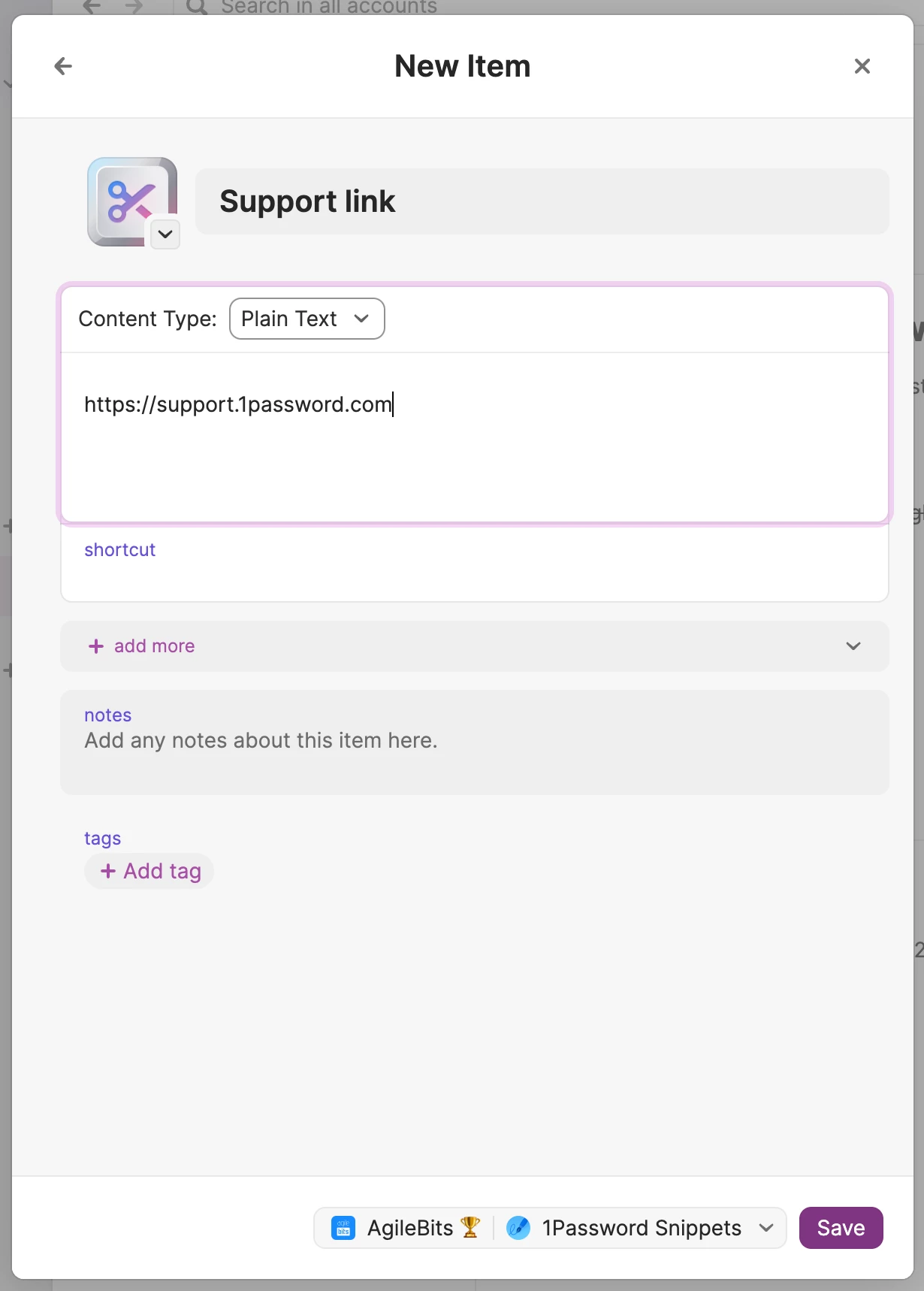
To start creating a snippet, open and unlock 1Password, and choose New Item > Snippet. Give your snippet a title and add some contents.

Set a shortcut
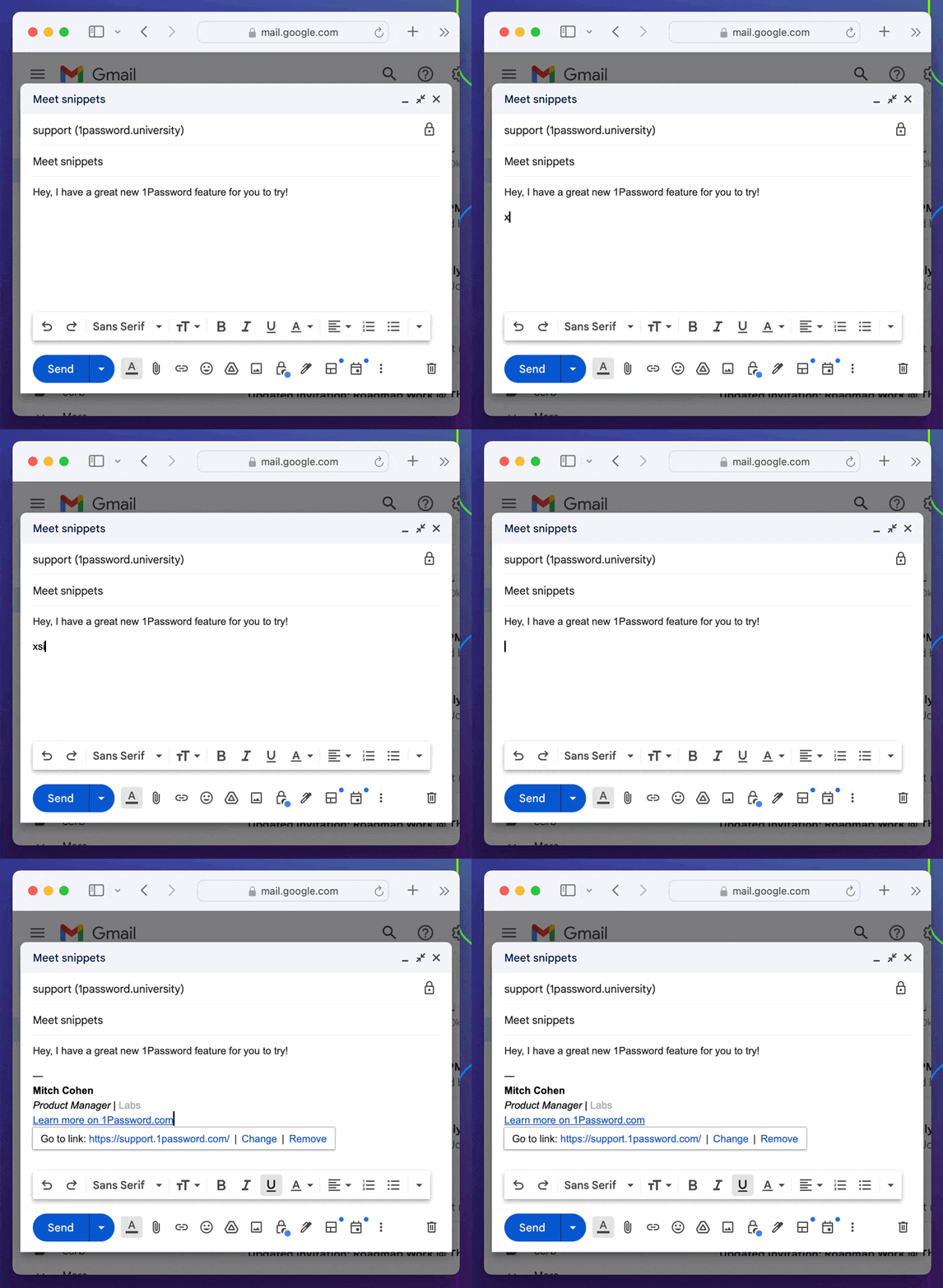
Snippets have an optional shortcut field. Typing a shortcut into any app will expand the associated snippet in place. A shortcut can be any short sequence of characters, but it's good practice to avoid common words and to use prefixes like ";", “x”, “,” or "/" so you won't type expand your snippets accidentally.
Some examples of shortcuts for an email signature snippet might be ";sig", "xsig", “,sig”, or "/sig".
Choose plain or formatted text
When editing a snippet, you can choose between two types of content: plain text and formatted text.
- Plain text snippets have the highest compatibility and expand faster.
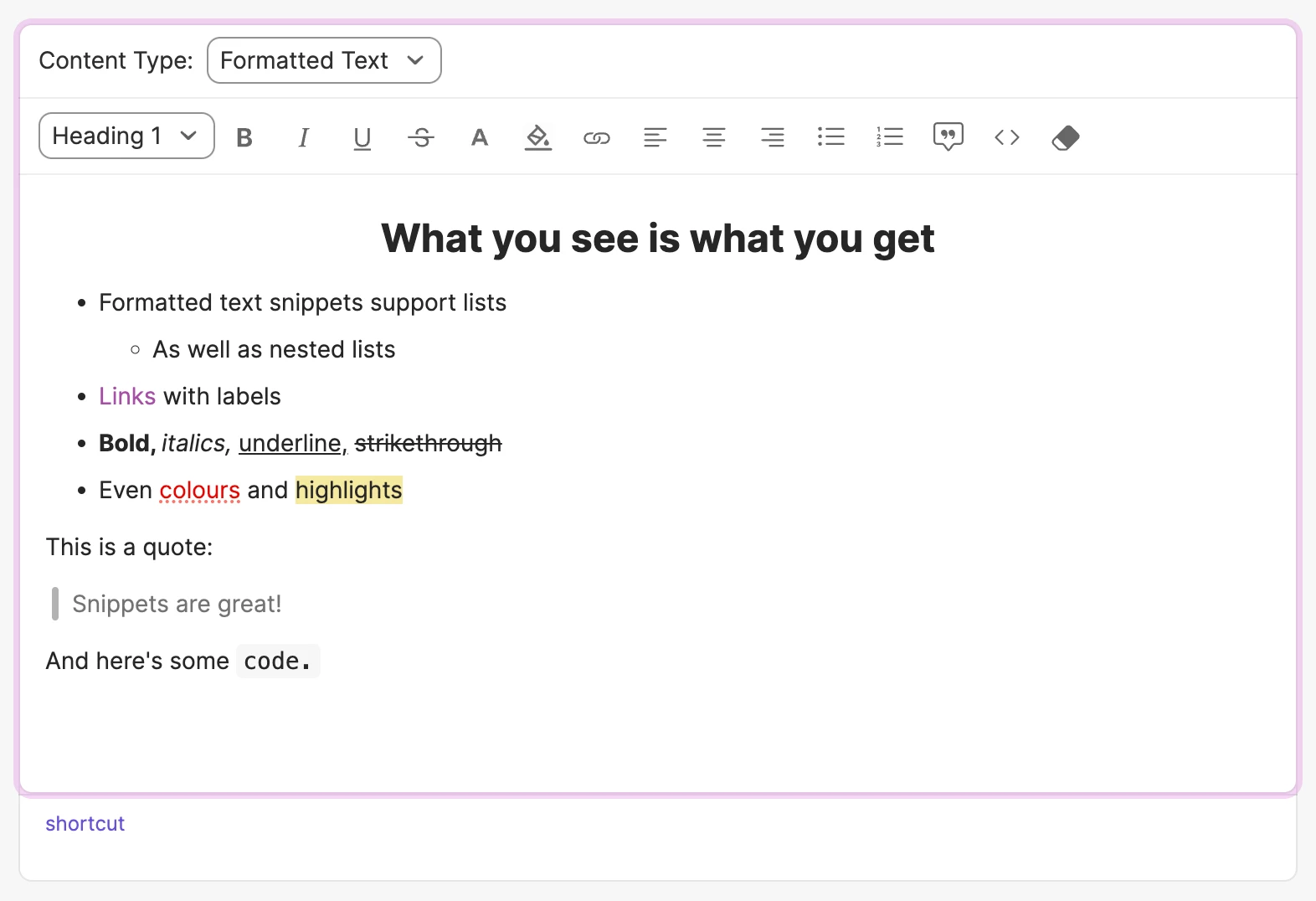
- Formatted text snippets let you incorporate rich-text formatting, including text styles (bold, italic, etc.), text and background colors, lists (bulleted and numbered), headings, links, and more.
Formatted text snippets can be expanded into many apps and websites while preserving their styles and formatting. Try them out in apps like Slack and Google Docs.
Expand snippets
Snippets can be expanded anywhere on your Mac that accepts text: emails, documents, notes, or any app or website. Expanding a snippet will fill its contents where the text cursor is currently focused.
Expand using shortcuts
Place your text cursor in an app or website wherever you’d like to use a snippet, and type its shortcut. The shortcut will be replaced with the full contents of the snippet.
Expand using Quick Access
You can also search for snippets and expand them using Quick Access (Command-Shift-Space). Snippets can be expanded from Quick Access even if no shortcut has been assigned to them.
Toggle expansion
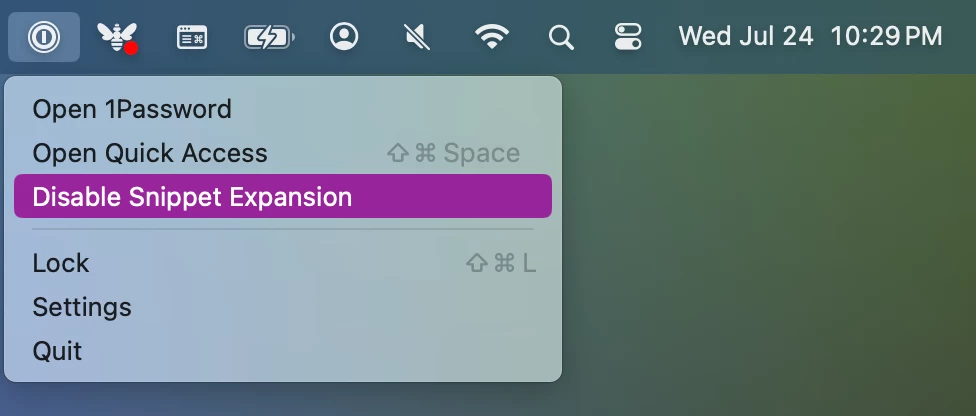
Snippet expansion can be turned off or on at any time from the 1Password icon in the top-right side of the Mac menu bar. When snippet expansion is disabled, shortcuts you type will not be detected or replaced.
 Add variables to snippets
Use variables to substitute dynamic values into snippets when you expand them, such as the date, time, or the contents of your clipboard.
The currently supported variables are:
{date}: Inserts today's date in a short localized format.{time}: Inserts the current time, localized.{clipboard}: Inserts the current text contents of the system clipboard.
Formatting dates and times
The {date} and {time} variables can be further customized with a format string. Some examples:
{date "%A, %B %d, %G"}: A long date that includes the day of the week, e.g. "Wednesday, March 20, 2024".{time "%H:%M"}: The 24-hour time e.g. "13:20".
The full list of supported format specifiers can be found here: https://docs.rs/chrono/latest/chrono/format/strftime/.
Date-time offsets
You can specify a date or time in the future (or past!) using offsets. For example:
{date +30D}: 30 days from today{time +8h}: 8 hours from now{date -1M}: 1 month ago
Offsets can be combined with format strings, as well as with each other:
{date "%A, %B %d, %G" +1M + 5D}: A long date, 1 month and 5 days from today
Security and privacy
Like the rest of your 1Password data, secure snippets are end-to-end encrypted and sync securely with your 1Password account. Your snippets are completely inaccessible to anyone who you do not share them with, including us.
Plain text copies of the shortcuts which you assign to snippets (.e.g. “;sig”) are stored on your Mac or PC so that 1Password can always recognize when you type a shortcut, even when it is locked
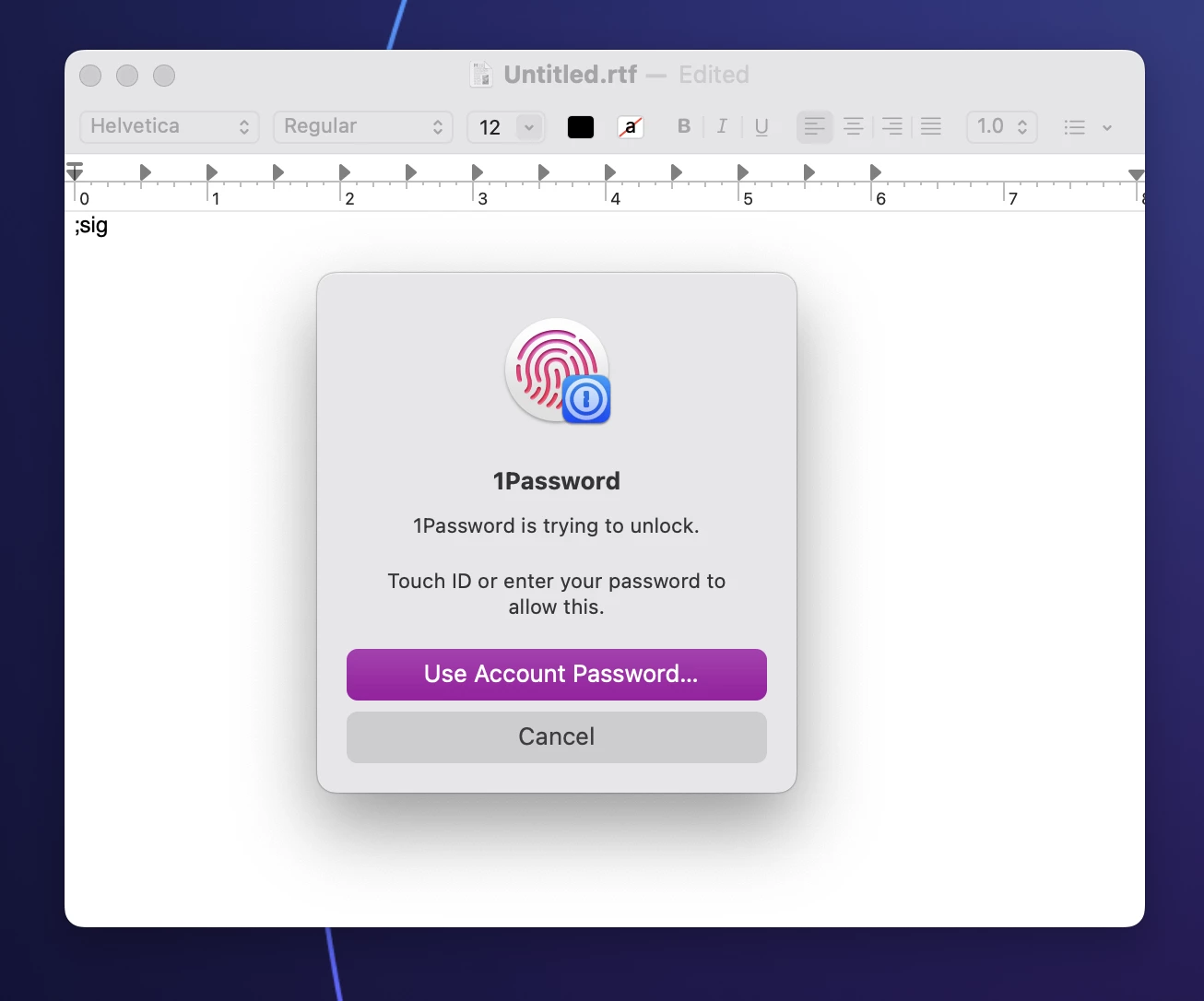
The complete snippets are not stored in plain text, and you will be prompted to unlock before any snippet contents are decrypted or filled.
Known Issues and limitations
Snippets are still experimental, and you can expect the feature to improve over the course of updates. The following limitations are currently known:
- Snippets can only be created and used on macOS. Support for Windows is planned.
- Snippets cannot be viewed or edited on mobile devices. Support for viewing and editing snippets on iOS and Android is planned.
- Snippets can only be used from your Personal vault. The ability to use snippets in different vaults and share them is planned.
What's next
I hope you enjoy trying out secure snippets.
Do secure snippets gel with the way you use 1Password? What kinds of features would you like to see? Settings? More variables? Windows or Linux support? 🐧 Where we take this project and others like it depends on your feedback and insights.