


Enforcing 1Password Device Trust Checks
Objective: Begin enforcing device health checks, requiring employees to address and resolve security issues before accessing work apps.
People
Prepare for support needs
Anticipate that employees may need extra help during this phase, especially those unfamiliar with resolving device health issues
Continue reinforcing privacy standards
Reiterate that Device Trust only monitors essential security data, and remind employees to consult the Privacy Center if they have questions about what is being checked.
Process
Notify employees of enforcement date
Send reminders about the enforcement of health checks, explaining that security issues must now be resolved in order to access work apps. We recommend using our employee communications templates as a starting point.
Offer support
Anticipate increased support needs during the enforcement phase.

Technology
Add New Device Trust checks
View the checks catalog to review all available pre-built Checks or build your own.
- NOTE: when first deploying, we recommend starting with "report only" or "warn only" before turning on enforcement, so as to minimize disruption.
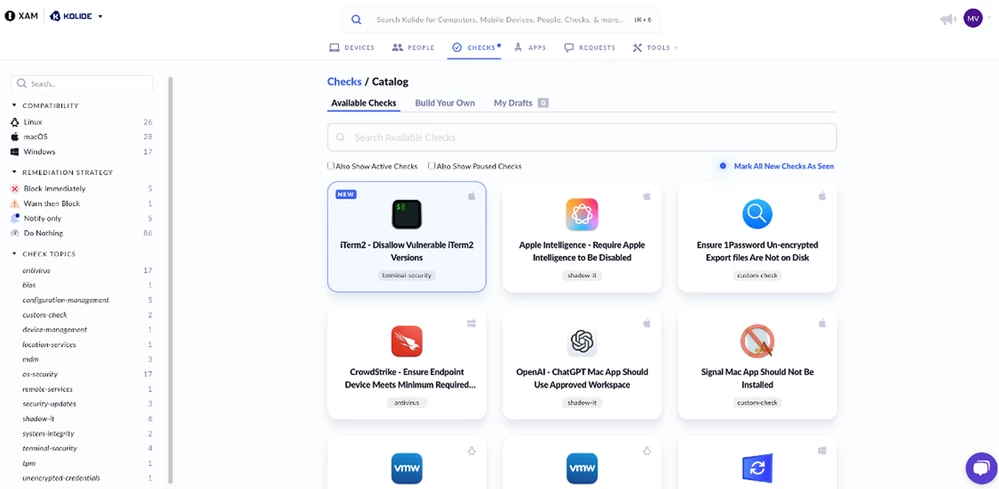
Add Checks for 1Password Enterprise Password Manager (EPM)
Consider adding the following checks to your instance if you’re already an EPM customer.
Require 1Password to be logged into a work account.
Disallow 1Password Emergency Kits stored in plaintext.
Require 1Password 8 meets minimum version.
Require SSH keys to be encrypted and stored in 1Password.
Use the Extended Device Compliance feature to enforce checks for non-SSO apps via the 1Password browser extension
Visit the APPs tab in your Device Trust admin console.
Select discovered applications that you wish to protect with Device Trust and toggle Extended Device Compliance on.
Ensure end users have the Device Trust agent and 1Password browser extension installed.