


Why Claude Code and 1Password are the perfect match
Software development has gone mainstream. A growing cohort of nontraditional builders now uses AI tools to create, ship, and review code in ways that were unthinkable five years ago. Building with AI assistance is now essential to keep pace at work and stay one step ahead of industry competitors.
Claude Code is one of the tools driving this shift. It works in the terminal, supported IDEs, the Claude app, and even Slack. You can use Claude Code to inspect projects, edit files, run commands, work with Git, and other common development tasks.
Tools like Claude Code mean a broader range of people are now responsible for handling sensitive information such as API keys, tokens, and environment variables. 1Password research found that a quarter of developers (24%) hardcode credentials, while 43% don’t use a dedicated secrets manager or vault. If you’re a new builder, you might still be learning what secrets are, where to store them, and why experienced developers take their protection seriously.
1Password’s developer tools help you authenticate Claude Code, keep plaintext secrets out of your code, and protect your SSH keys. In this article, you'll learn practical ways to use 1Password and Claude Code together, with tips to help you build more securely from the start. We’ll begin with the basics, then walk through integrations and workflows you can use in your own projects.
How 1Password and Claude Code fit together
At a high level, Claude Code helps you build and run your project. Projects often need credentials, such as API keys, to connect to other services. 1Password securely manages those credentials and environment variables, keeping their raw values out of your code and project files.
Although closely related, Claude and Claude Code are not the same product. Claude is a general-purpose assistant, while Claude Code is designed specifically for developer workflows. "Claude Code is like a client, or the wrapper around the model," Scott Lougheed, Developer in Partnerships Engineering at 1Password, said. "And the model, like Sonnet or Opus, is the brain."
Overview
- 1Password Shell Plugin: Authenticates the `claude` CLI.
- 1Password Environments: Store and provide project variables without keeping raw secrets in plaintext files.
- Claude Code: Edits files, runs commands, and works with Git.
- 1Password SSH Agent: Authenticates Git and other SSH clients, and can sign Git commits.
Eliminate plaintext secrets from code
The accidental exposure of API keys, security tokens, and other credentials has contributed to a surge in security incidents. Hardcoded secrets also create operational friction, especially when credentials need to change. Rotating credentials because of personnel changes or company security policies can break individual setups, forcing each team member to update their own .env file.
What’s a .env file?
A .env file is a simple configuration file that stores the settings and credentials an application needs to run, such as an API key or database password.
As a new builder working with Claude Code, you'll quickly reach a point where your project needs secrets to connect to the services it depends on. Instead of putting those plaintext values in your codebase, you can store them in 1Password and make them available only when your project needs them. 1Password Environments organize variables for a project or workflow, while 1Password CLI securely supplies individual secrets to the commands that need them.
Use a mounted .env file with 1Password Environments
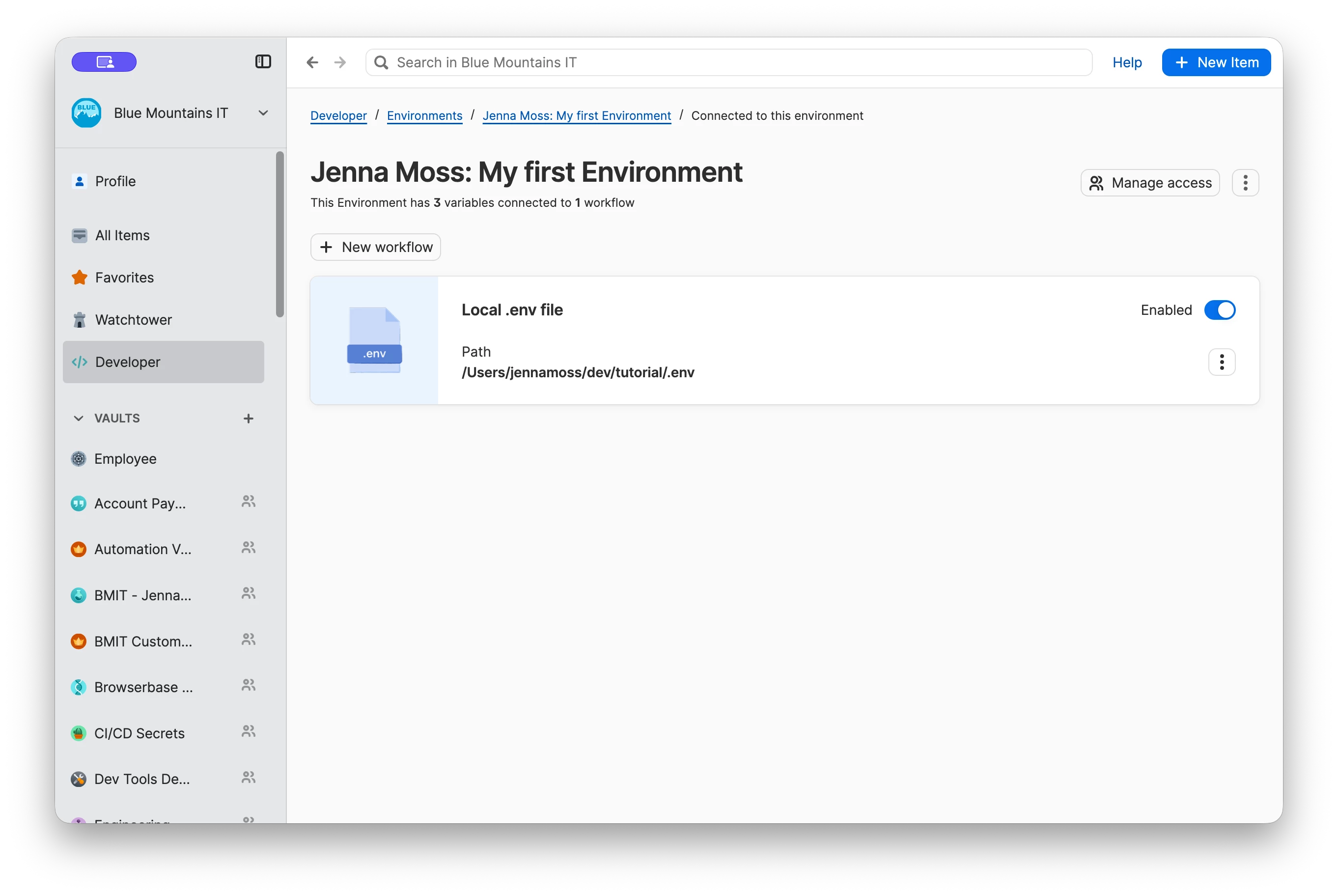
There are several ways to securely use secrets in your projects. If you're working on macOS or Linux, you can use a locally mounted .env file. This option works well for projects that require multiple secrets or expect a traditional .env file.
A locally mounted .env file lets applications on your device access secrets stored in 1Password Environments without keeping those secrets in a plaintext file on disk.
Use secret references within 1Password Environments
Stay secure by storing your project secrets in a 1Password vault first. Then, refer to those secrets with secret references (Example: ‘op://vault/item/my_secret’) inside your Environment.
Theo Ephraim, co-founder of DMNO, uses Varlock, a tool for managing, validating, and securely loading a project’s environment configuration, in his Claude Code workflow. The Varlock 1Password plugin lets Ephraim work with both individual vault items and Environments: “The 1Password plugin is able to pull individual items and also pull from Environments. You can use both at the same time.”
You can use Environments to store the broader configuration your project needs, not just its secrets. “It could be everything from a port number to a URL pointer to, which aren’t really secret variables but are still part of the configuration,” Kraig Strong, Sr. Engineering Manager for Developer Platform at 1Password, says.
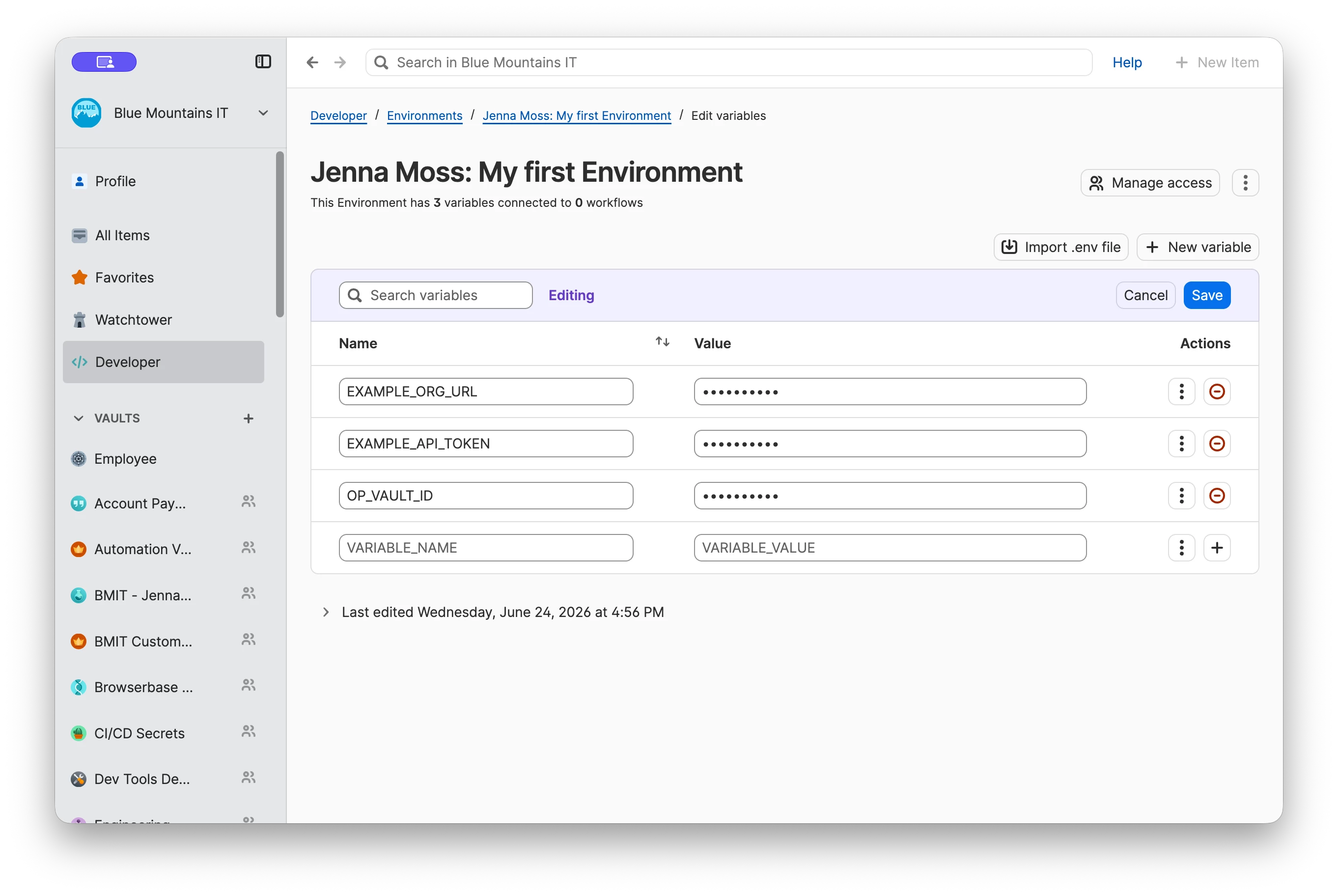
In addition, you can securely share your Environments with team members and project collaborators. As Lougheed explains:
"I was building an internal tool and collaborating with several other developers. Until we had Environments, it was always a little bit fraught because we all had to maintain our own .env file. If I added something, and my teammate didn't know, it wasn't going to work for them until they figured out what they needed. Once Environments were available, we just set up a shared Environment, and populated it with the tokens our team needed."
The benefits
Mounted Environments help you:
- Continue using familiar workflows and environment variables.
- Give your project and Claude Code access to what they need, when they need it.
- Securely share secrets with team members.
- Simplify secret rotation.
Use op run with 1Password CLI
Alternatively, you can use individual secret references to keep plaintext secrets out of your projects. This is performed with 1Password CLI, which brings 1Password to the terminal.
What’s the terminal?
The terminal is a text-based window where you give your computer instructions by typing commands instead of clicking through menus. Developers use it to run programs, manage files, work with Git, and launch tools such as Claude Code.
1Password CLI lets you programmatically interact with your 1Password account and securely access the developer secrets and variables your projects need.
When you run ‘op run’ in your terminal, 1Password CLI loads the specified secrets and starts the application or script that needs them in a subprocess. It makes those secrets available as environment variables while the process runs, so you can give your application the credentials it needs without storing plaintext values in your project files.
In this workflow, Claude Code works alongside 1Password CLI, which you run in the terminal. Claude Code can help you write, test, and run your project, while ‘op run’ supplies secrets to the specific application or development command that needs them.
You can run that command yourself or ask Claude Code to run it – just be sure to review the command before approving it. And avoid commands that print secret values, since anything exposed by a command may be available to the agent.
"I always have my terminal up on my screen, so I'm always looking at that anyway, and it's really nice to just have Claude right there," Lougheed says.
The benefits
Like Environments, secret references help you:
- Keep credentials out of source code and Git history.
- Continue using familiar workflows.
- Give your project and Claude Code access to what they need, when they need it.
Get familiar with unfamiliar codebases using Claude Code
Whether you’re a seasoned professional or a hobbyist builder, you’ll encounter codebases you don’t fully understand yet. This often happens when you start working with a new organization, project, or product. Those codebases may contain thousands or millions of lines of code written by people, AI agents, or a combination of both.
That’s normal. As Lougheed explains, Claude Code can help you find your bearings. "In an unfamiliar codebase, I can work with Claude to establish familiarity way faster than just global searching my way through the codebase."
Lougheed takes this one step further by connecting Claude with Sourcegraph, a platform that helps developers search, write, and understand code. "Claude can use Sourcegraph securely by using a secret reference to a SourceGraph token in 1Password,” he says. “I never have to write it to my disk. Once I have a plan, I might ask Claude to create a guide, or signpost parts that I should look at. Then I bring up VS Code and start looking at the code."
Authenticate Claude Code without storing API keys in plaintext
The importance of your Anthropic (Claude) API key can't be understated. When you use the API-key workflow, your Anthropic API key authorizes Claude Code to access Anthropic's models. Without your key, Claude Code is like a self-driving car that can't turn on the engine.
Note: If your employer pays for Claude Code, you may not need to manage a personal Anthropic API key.
You don't want to misplace your key or leave it exposed in code. (Anyone who obtains the key may be able to use the associated account or generate charges.) Instead, store it in 1Password alongside the other credentials required by your projects.
The next step is to securely inject the key into the Claude command through a 1Password Shell Plugin (macOS and Linux only). The plugin connects 1Password and the command-line tool, allowing you to authenticate Claude Code without keeping the API key in a shell profile or project file.
When needed, you can securely authenticate with biometrics, an Apple Watch, or system authentication. This lets you start using Anthropic's models without storing your API key in plaintext. "That means it's not there persistently," Lougheed added. You use Touch ID (or similar) when it's needed, and you know what is requesting it. All of that gives you peace of mind."
The benefits
By using 1Password Shell Plugins, you can:
- Keep your Anthropic API key out of project files.
- Access your API key on multiple devices without manually copying it between them.
- Make authentication an explicit approval step.
- Switch between projects without having to constantly sign in and out.
Store your API key in a 1Password Environment
Depending on your project, you may also want to store your Anthropic API key in a 1Password Environment. Strong gives the following example:
“I’m using an LLM for some of the features in one of my personal projects. I have my Anthropic API token in an Environment. And I have three different environments for the project: one for client-side secrets, one for server-side secrets, and one for edge function secrets. When I see, ‘hey, Claude is trying to read this Environment,’ I can easily say no if I don't want to rack up a bunch of API costs. I really like having that safety gate there. If I'm going to give the client access to secrets, the server-side access to secrets to something, or if I'm going to give the API key to something, I want that level of granularity.”
Allow Claude Code to use Git without sharing private SSH keys
Git is a version control system that lets you track changes, push updates to a remote repository, and work collaboratively with other developers across different branches.
You can sign Git commits to verify who created them. It records and verifies that you –– and not someone trying to impersonate you — were responsible for the changes. The process uses an SSH key pair with a public key and a private key. GitHub, GitLab, and other Git hosting services can use the public key to verify the signature.
The 1Password SSH agent lets you generate and store SSH keys in 1Password. You can then authenticate Git and sign commits while keeping the private key in 1Password. You authorize access the same way you unlock the 1Password app — for example, with Touch ID, Windows Hello, or another supported authentication method.
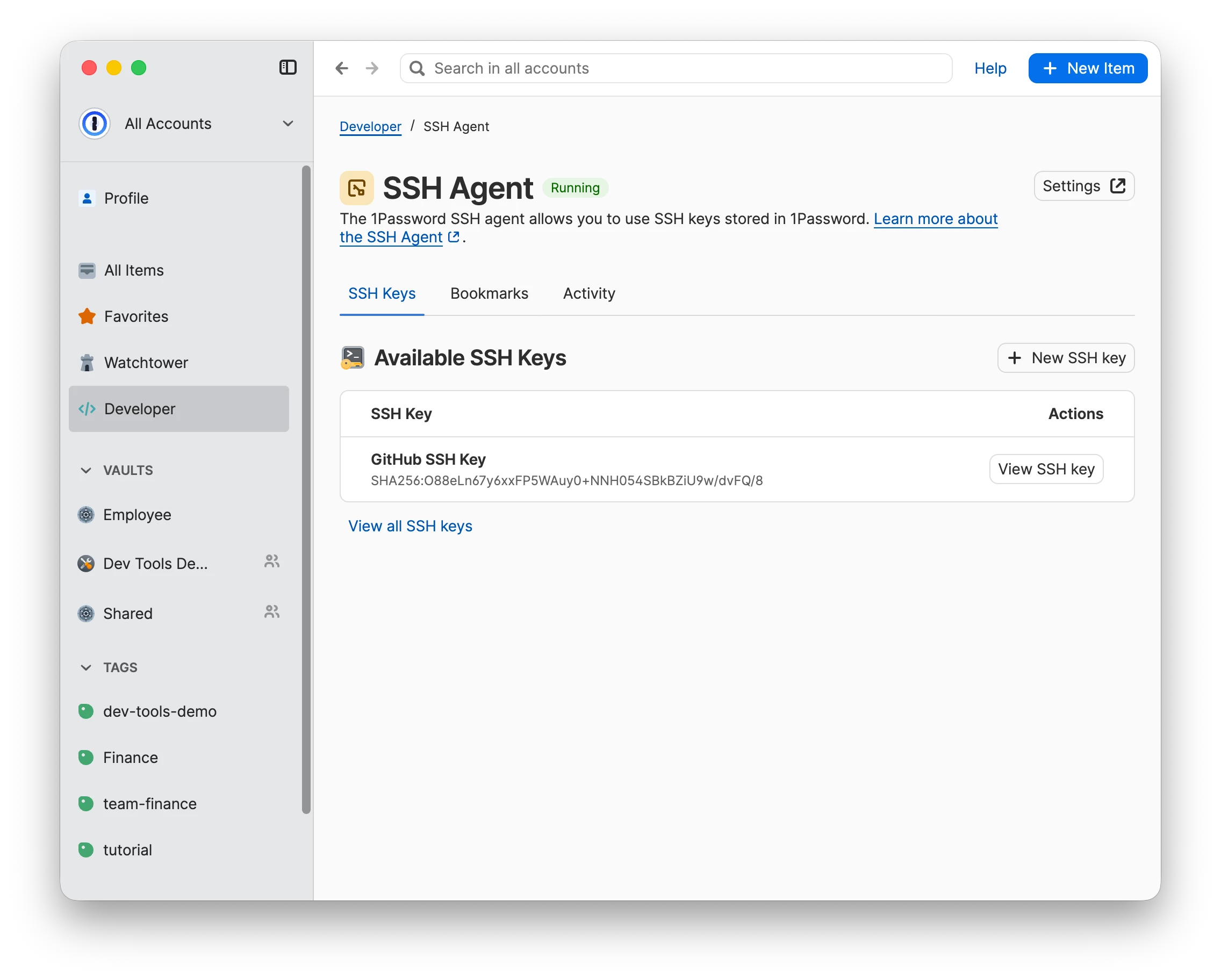
“Enabling the 1Password SSH agent and storing your SSH key in 1Password means you are now protected across devices and across platforms,” Strong explains. “You never have to think about it again. If your laptop gets pushed off the table and smashes into a million pieces, and you go buy a new one the next day, there's no configuration change. You're good to go.”
With Claude Code, your workflow might go something like this:
- Write code in an IDE like VS Code.
- Ask Claude Code to improve the code.
- Once you're happy with the changes, ask Claude Code to create a signed commit and push it using the 1Password SSH agent.
Claude Code can also work with Git repositories and run commands such as git fetch and git push directly in the terminal. In this workflow, Git performs the repository operations, while the 1Password SSH agent provides the authentication or signing capability. Claude Code can propose or run the commands, but you remain responsible for reviewing its work and approving important actions.
The benefits
Combining Claude Code with the 1Password SSH agent lets you:
- Keep your private SSH keys protected.
- Use Claude Code for Git-related tasks without storing private keys in project files.
- Quickly use your SSH keys on new devices without manually migrating key files.
Bonus: 1Password for Claude!
The standard version of Claude is an increasingly powerful assistant for a variety of day-to-day tasks, from research to writing.
Claude is also becoming more agentic, moving beyond information retrieval to perform digital tasks on your behalf, like booking a flight or a table at a restaurant. To complete those tasks, Claude may need access to the associated accounts.
1Password for Claude lets your AI assistant complete browser tasks that require logins and one-time passcodes without entering credentials into the model or its memory.
Secure your developer workflows
Claude Code is one of many AI tools that have democratized software development by allowing anyone, regardless of technical knowledge, to write code by simply describing what they want to create.
1Password's developer tools help secure sensitive credentials, from SSH keys to environment variables, and give you control over what Claude Code and the tools it runs can access. They provide peace of mind without slowing down your work or limiting your AI assistant.
Together, 1Password and Claude Code let you experiment and ship while following secure development practices.
Get started with 1Password developer tools
1Password’s developer tools secure your daily workflows. Build practical skills with these tools in the 1Password Academy series for developers.