


Our community is getting an upgrade on July 2nd! Learn more in the FAQs →
Forum Discussion
1P_Blake
Community Manager
17 days agomacOS AutoFill is now in public beta!
Hey everyone!
We're excited to share that native macOS AutoFill is now available in public beta for 1Password. This has been one of the most requested features for years, and we're now at a point where you can test it out and give us feedback!
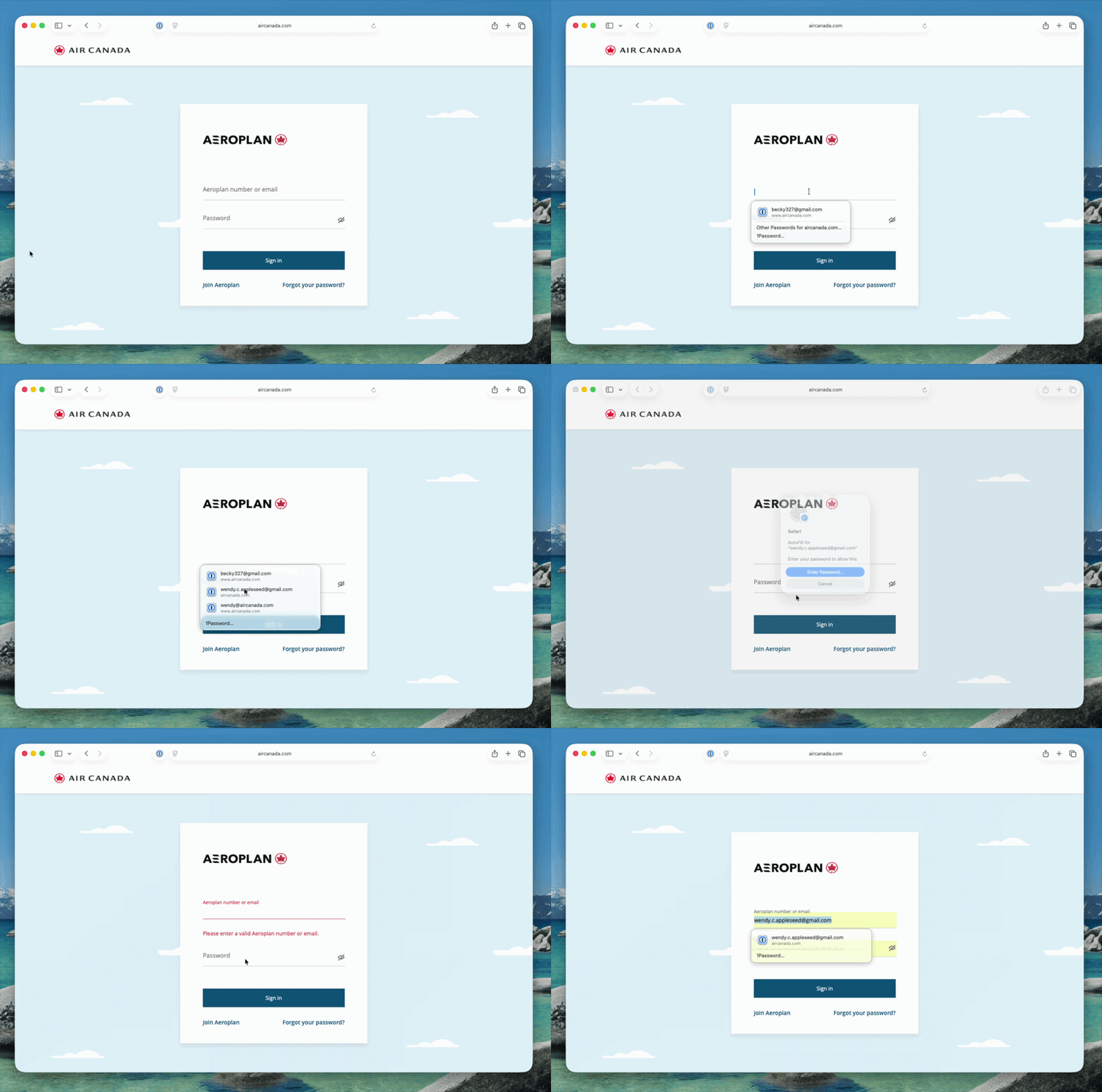
What's new in beta:
- By adopting Apple's Passwords API, 1Password functions as a native Credential Provider on macOS for logins. You can view autofill suggestions directly within Safari and other supported desktop apps.
- Passkey support is included in this beta as well. Fill, create and update passkeys easily through macOS autofill.
- The 1Password Safari extension can be used alongside macOS AutoFill to access additional features not currently supported by the Passwords API.
- Coming later in Beta, you can set up one time codes using the same integration.
How to try it:
- Update to 1Password for macOS 8.12.22 or later from the beta channel.
- Make sure you’re on macOS 14 (Sonoma) or later on Apple silicon.
- Go to 1Password for Mac Settings > Autofill > Set up macOS AutoFill, then select "Turn On" from the macOS permission prompt. You'll see "Active" status once it's enabled.
Try filling logins and passkeys and let us know how it goes! We're happy to be one of the first credential managers to adopt these APIs and we want to get it right for you.
Drop your feedback in the comments below!
19 Replies
- hazmatFrequent Contributor
I'm on the latest beta and have autofill for 1Password enabled in the Settings app. At work this same thing is working as expected, but this is all I get on my Mac at home. M2 Mac mini with macOS 26.5.1.
- hazmatFrequent Contributor
Any recommended settings between native autofill and the browser extension so we can use native autofill, but also retain TOTP, passkey, new login creation, etc., yet not get double login suggestions in the browser?
- MirvSuper Contributor
A couple of comments about the macOS Autofill. I've been trying it the last few days.
1. I have the universal autofill on, and this at the same time. Seems like I should turn one of them off. What's the recommended way to turn off universal autofill and stay with macOS autofill?
2. The new macOS autofill asks for a touchID every single time, where universal autofill remembered me and I can skip this step. Is there a way to get macOS autofill to skip that step?
- 1P_Dave
Moderator
Mirv​ Thank you for helping us test the feature! I'll reply below:
I have the universal autofill on, and this at the same time. Seems like I should turn one of them off. What's the recommended way to turn off universal autofill and stay with macOS autofill?
Universal Autofill isn't being removed at this time. You can keep both features turned on at the same time.
The new macOS autofill asks for a touchID every single time, where universal autofill remembered me and I can skip this step. Is there a way to get macOS autofill to skip that step?
Try changing this setting:
- Click on the Apple logo  in the menu bar, then click System Settings.
- Click Touch ID & Password.
- Turn off "Use Touch ID for autofilling passwords".
Let me know how that goes.-Dave
- MirvSuper Contributor
Thanks, that is helpful! I guess it seems ok to have two ways to fill at the same time.
One other thing I noticed is that if I have multiple login items for the site, the 1Password universal signin popup near the top will give one default choice (the one I prefer), but the macOS autofill inline menu will give the other choice. Not sure how it decides.
- gmcluhanNew Contributor
I updated to the latest Nightly of 1Password this morning and to my surprise the app offered to enable the Native Password Autofill for macOS!!!! I just want to say THANK YOU to the team at 1Password for doing this! I appreciate all the work on 1Password for Safari but it has been buggy and overall not a great experience. Thank you for adopting the built-in framework you made my day!
- 1P_Dave
Moderator
We're thrilled to hear that you're enjoying the new macOS AutoFill feature! Thank you for the kind words. đź’™
Let us know if you run into any issues!
-Dave
- halorrr97New Contributor
How do I turn off the feature? I set it up before realizing it doesn't support 2FA and similar to my struggles with password suggestions on iOS, when I have multiple logins for a site across vaults, it always seems to suggest one that I wouldn't want (wish I could set one as the priority)
- 1P_Dave
Moderator
You can turn the feature off by following these steps:
- Click on the Apple logo in the menu bar, then click System Settings.
- Click General.
- Click Autofill & Passwords.
- Turn off "Autofill Passwords & Passkeys".
I hope that helps!-Dave
- jalanhOccasional Contributor
I've gone to settings and enabled 1password in the autofill. I opened safari and disabled the safari 1password extension. I browsed to a site where I have a username/password stored in 1password. I clicked on the key icon and selected '1password...' and I get this dialog box.
Did I miss something in the setup?- 1P_Dave
Moderator
Thanks for helping us test the new feature! If you lock and unlock the 1Password app one more time to load the latest feature flags, you shouldn’t see the “Native macOS AutoFill is under exploration” message anymore. But let me know if you still see the same message.
-Dave
- jalanhOccasional Contributor
Thanks, that did the trick!
- chopin1012Occasional Contributor
First, thank you and the devs for bringing this feature to beta!
As for feedback...I just switched from the nightly builds to the beta. Upon trying to login to my Google account using my stored passkey, I was given a popup saying it was being explored and to turn Passkeys off in Autofill settings. I switched back to Apple Passwords, signed in with my passkey, switched it back to 1Password, and then it worked.
Second, would it be possible to select a username/password with one tap or click rather than two?Thanks!
- 1P_Dave
Moderator
Thank you for trying out macOS AutoFill and for sharing your feedback! I'll reply below:
I just switched from the nightly builds to the beta. Upon trying to login to my Google account using my stored passkey, I was given a popup saying it was being explored and to turn Passkeys off in Autofill settings. I switched back to Apple Passwords, signed in with my passkey, switched it back to 1Password, and then it worked.
It's possible that the feature flag, restricting the feature to the beta version, hadn't yet loaded properly. Usually locking and unlocking the 1Password app will be enough to get thing working. If you see the exploration message again in the future then let us know.
Second, would it be possible to select a username/password with one tap or click rather than two?
Can you tell me a little more about this? I can fill my login credentials by clicking once on the suggestion that appears underneath the username field and then authenticating using Touch ID:
-Dave
- cyber-baconFrequent Contributor
Not sure what I have been doing wrong (or right?) all these years, but I thought this was already available. Or will this upgrade work without the browser extensions, and can use only the macOS app now?
- 1P_Dave
Moderator
Thanks for the question! The screenshot you shared shows the suggestions menu from 1Password in the browser (the browser extension), and you’re absolutely welcome to keep using that experience.
macOS AutoFill, currently being tested in the beta version of 1Password for Mac, lets you fill login credentials using the 1Password desktop app together with Apple’s native AutoFill feature. It works in Safari and other supported desktop apps on your Mac without relying on the browser extension for filling.
-Dave
- cyber-baconFrequent Contributor
Ah, that's the improvement! It should work across applications also, not only in the browser (via browser extension).
I have been looking forward to this -- saves a few second of copy/paste.