

1Password Employee
August 11, 2026

macOS AutoFill is now available to everyone!

  • August 11, 2026
  • 126 replies
  • 672 views

Hey everyone!

Native macOS AutoFill is now generally available in 1Password for Mac. This has been one of the most requested features for years, and it's now ready for everyone on the stable channel.
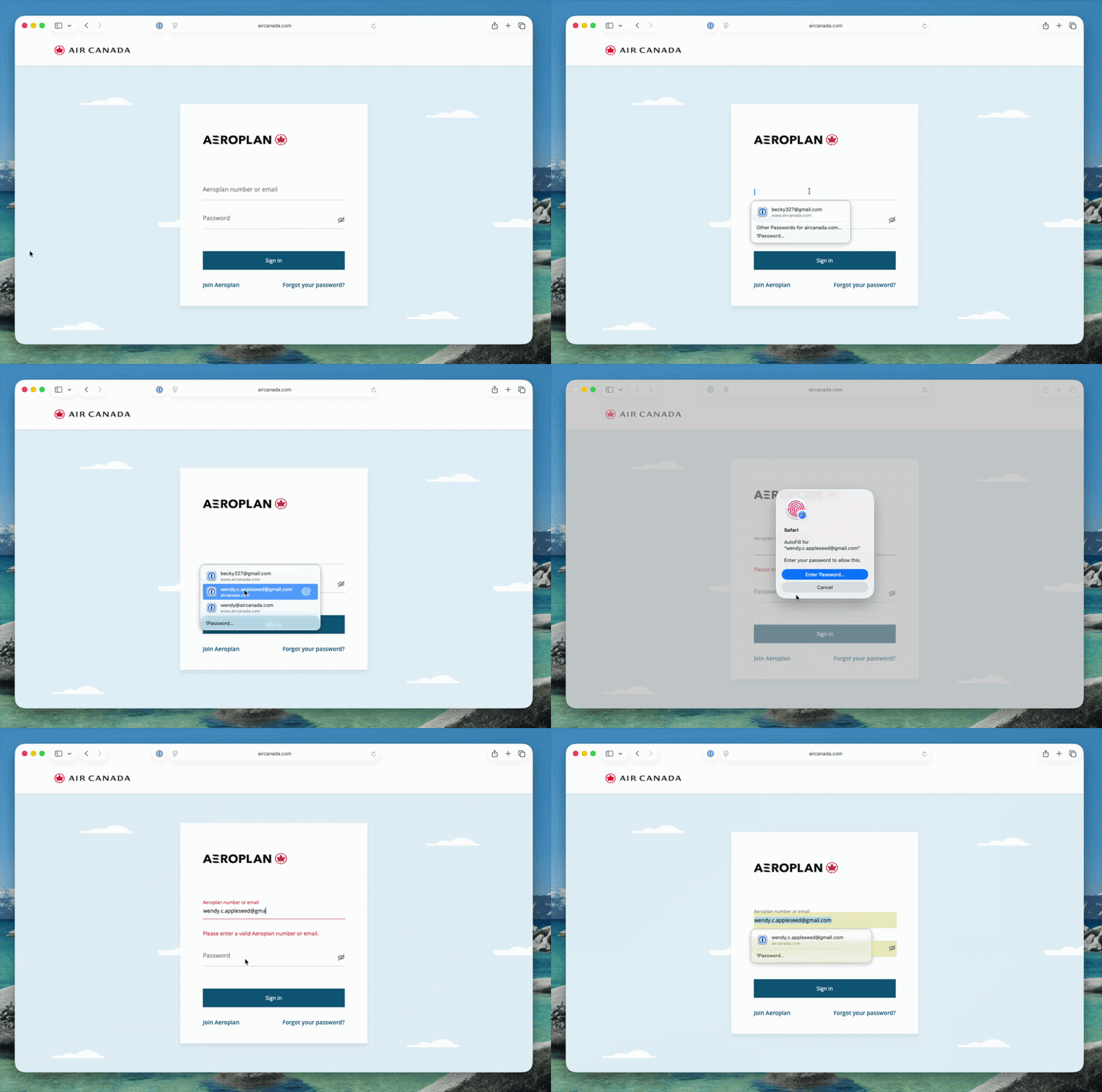


Here's what macOS AutoFill gives you:

  • By adopting Apple's Passwords API, 1Password functions as a native Credential Provider on macOS for logins. You can view autofill suggestions directly within Safari and other supported desktop apps.
  • Passkey support is built in. Fill, create, and update passkeys easily through macOS AutoFill.
  • The 1Password Safari extension works alongside macOS AutoFill. Login suggestions appear in Safari's native menu, and the extension continues to fill credit cards, addresses, and other items the Passwords API doesn't support yet.
  • One-time code support through the same integration is on the way and will land in an upcoming release.

How to turn it on:

  • Update to 1Password for macOS 8.12.32 or later.
  • Go to 1Password for Mac Settings > Autofill > Set up macOS AutoFill, then select "Turn On" from the macOS permission prompt. You'll see "Active" status once it's enabled.

Full setup and troubleshooting details are in our support article.

To everyone who tried the beta over the past few months: thank you! Your feedback directly shaped this release. Try filling logins and passkeys and let us know how it goes in the comments!

126 replies

September 5, 2026

I am a very long-time 1Password user and therefore was very happy to find that macOS native AutoFill using Command-backslash is finally again available.  However, despite reading all of the recent announcements, it’s not clear what feature differences now are between the macOS native AutoFill vs. the new Universal AutoFIll browser extention experience.  For security reasons I would prefer to now completely uninstall the browser extention if native AutoFill will do the job instead.

Are there features that the browser extention provides that are not available from macOS native AutoFill?

1P_Dave
1Password Employee
1Password Employee
September 8, 2026

​@hRngu65n5 

Thanks for the question! macOS AutoFill can fill your login credentials from 1Password in supported websites like Safari even without 1Password being installed in that browser. I’d still leave 1Password for Safari installed and enabled for things that native AutoFill can’t currently handle like the filling of identities and credit card information. 

Basically, if you leave both enabled, native AutoFill will be there to do what it supports (filling login credentials) and then 1Password for Safari will pop up for anything that native AutoFill doesn’t support. 

-Dave

September 19, 2026

After recent updates, the next time I opened 1Password it asked me to activate autofill of passwords/passkeys(I think). There was a toggle switch to activate it, so I did. I’m just wondering if there’s any reason not to do this. It said you could deactivate it anytime in settings, so I looked for the setting. The only setting I could find for that was in iMac settings(not !Pass). If you go in General-AutoFill & Passwords on an iMac, that’s where you find it. I could not find a setting for that in 1Pass. I’m just trying to make sure I didn’t activate something that I should not have. I don’t want to compromise any security on my iMac. If you can shed any light on this for me, please do so. I’m a long time 1Pass customer, but many computer issues are beyond my pay grade. FYI, the window that originally appeared was the first one that came up after the latest updates. I guess I shouldn't have activated it without knowing exactly what I was doing. My bad.

1P_Dave
1Password Employee
1Password Employee
September 22, 2026

​@jazzman 

It sounds like you’ve turned on support for native macOS AutoFill, I’ve moved your post into our thread for the new feature. You can read more about it here: Use 1Password to sign in to apps and websites on your Mac

If you’d like to turn macOS AutoFill off then you can do so with these steps: 

  1. From the menu bar, select the Apple menu > System Settings.
  2. In the sidebar, select General, then select AutoFill & Passwords.
  3. Under “AutoFill from”, turn off 1Password.
  4. Select the 1Password icon in the menu bar, then select Quit.
  5. Reopen 1Password.

I hope that helps. 

-Dave

September 22, 2026

​@1P_Dave 

Dave, thanks for your response. I have activated this new feature following the instructions, but I’m not yet sure how it benefits me. The old way was fine with me without changing. I’m just not yet sure what this does for me. My light switch on this change has just not registered yet. Maybe I just need to read everything again. I normally open 1Password on my Mac like a portal to everything important. I don’t have apps on my Mac that I log into. I do everything through my 1Password app. What am I missing here? I mean….based on the way I use 1Password, is this feature really useful for me? Please shed more light on it.

September 20, 2026

Full agree. I never thought I’d long for the old Safari experience, but here we are!

  • Fastmail one-time generation just doesn’t work any more. Was the feature removed?
  • Safari frequently forgets about the 1Password integration leaving me with this sort of UI disaster – god help someone who doesn’t have 30 years of technology experience.
  • The floating pill frequently gets confused and remains on-screen after I’ve logged in.

I can’t believe this was released. It’s a disgrace.

1P_Dave
1Password Employee
1Password Employee
September 21, 2026

​@deep.shop7403 

Thank you for the feedback! 1Password now supports macOS AutoFill, which allows macOS to fill credentials from 1Password using a native experience. macOS AutoFill doesn’t include all of the features of 1Password for Safari, like support for our masked email address integration with Fastmail. 

If you prefer using 1Password for Safari to fill your logins then you can definitely revert back to the previous experience: 

  1. From the menu bar, select the Apple menu > System Settings.
  2. In the sidebar, select General, then select AutoFill & Passwords.
  3. Under “AutoFill from”, turn off 1Password.
  4. Select the 1Password icon in the menu bar, then select Quit.
  5. Reopen 1Password.

Regarding the other issues that you brought up, would you mind sending an email to support@1Password.com, along with your community username, so that we can take a closer look? We’d love to improve those rough spots to make the experience better in the future. After emailing in, you'll receive an automated reply with a Support ID. Post that here, and I'll be able to locate your message and make sure it's gotten to the right place. 

-Dave


September 30, 2026

Here ya go, Dave:

Hello,

Thanks for taking the time to contact the 1Password Customer Support Team.
This is an automated message to let you know that we have received your inquiry and are working as quickly as possible to get back to you.

Your support ticket ID is 808155 

You may find the answer you are looking for in our helpful support pages that include walkthroughs and answers to frequently asked questions.

We look forward to helping you!

September 22, 2026

Thanks Dave. I’ve responded by email as well to say that I’ve turned off the native integration. The feature isn’t ready – which might be Apple’s fault, but that doesn’t matter – and shouldn’t be recommended in the 1Password app, which is the reason that I turned it on.

1P_Dave
1Password Employee
1Password Employee
September 22, 2026

Thank you for replying to the support ticket and for the feedback! I’m sorry that macOS AutoFill didn’t fit your needs right now, we’ll continue to iterate and improve the feature as time goes on. 

-Dave

September 24, 2026

I’ve been using the macOS autofill for a few days now. It’s got some nice things but it’s not ready for use, at least not on Safari on MacOS.  YMMV.

I have disabled it for now, but I’m happy to try it again later when it matures a bit. Right now, it slows me down and irritates me.

  • It regularly “guesses” the wrong item to log in with, especially for hosts in the same domain, e.g. host1.foo.com, host2.foo.com - each has a unique item with unique credentials, but autofill seems pretty random as to which of the *.foo.com items are chosen. as the “auto” entry.
  • When this choice is wrong, overriding it is more tedious than in the old drop-down UI inside the form fields. Extra clicks for something that shouldn’t need to be done in the first place is irritating.
  • Once I do choose an item for a particular site/host, that choice is NOT persisted. Every time I log in I have to work around this “auto” feature.
  • I regularly get “finishing signing in on ...” popping up even when the login process is complete, which I then have to dismiss so they don’t block the content of the page.

I’m using 1Password for Mac 8.12.36 (81236040) on Safari.

1P_Dave
1Password Employee
1Password Employee
September 25, 2026

Thank you for the feedback and for trying macOS AutoFill! I also see that you shared this feedback by email, and one of my colleagues will follow up with you there soon.

-Dave

September 25, 2026

I still must be missing something. The Extension very simply loads username and password instantly and goes to the website. Very easy in most cases. Tell me if I’m wrong. With Autofill, you have to search for the website login. At that point a window should appear for you to click which should open the website. Is that the essence of Autofill? If so, how is that easier and better than the Extension? I just don’t yet get it.

1P_Dave
1Password Employee
1Password Employee
September 25, 2026

​@jazzman 

You shouldn’t have to search for the website login when using macOS AutoFill. I recommend sending an email to support@1Password.com so that our support team can take a closer look at what you’re seeing. After emailing in, you'll receive an automated reply with a Support ID. Post that here, and I'll be able to locate your message and make sure it's gotten to the right place. 

-Dave

September 29, 2026

Dave, 

I reached out to support by email on the 25th and have yet to receive a response. Here’s what I sent:

I posted this today in the 1Password Community.
 
I still must be missing something. The Safari Extension very simply loads username and password instantly and goes to the website. Very easy in most cases. Tell me if I’m wrong. With Autofill, you have to search for the website login(I guess what I’m saying is there should be a list of your websites where you can click on the website to go to the login page. I’m not seeing that on my iMac). At that point a window should appear for you to click which should open the website. Is that the essence of Autofill? If so, how is that easier and better than the Extension? I just don’t yet get it. There should be a step by step guide on how this is supposed to work on an iMac with Golden Gate 27.0 because it’s not working on mine. 
 
Here’s Dave’s answer:
 

You shouldn’t have to search for the website login when using macOS AutoFill. I recommend sending an email to support@1Password.com so that our support team can take a closer look at what you’re seeing. After emailing in, you'll receive an automated reply with a Support ID. Post that here, and I'll be able to locate your message and make sure it's gotten to the right place. 

-Dave

Please help.

Maybe you can get an answer for me. Thanks.

September 25, 2026

It’s real simple. With the Safari Extension all my websites are listed in order, and all I have to do is click open and fill on the site of choice and it opens the site. No brainer. On Autofill, if you don’t have to SEARCH for websites to use Autofill, then where are they listed? I.e., how do you start the Autofill process? It appears to me that you have to go to the login on a website, and then Autofill kicks in to enter the username and password. It appears that it is adding extra steps to the login process. So, it seems that I’m missing the step where you choose a website to log into and go to the login step. Currently, all of my websites are listed in order in the Safari Extension. For the sake of argument, if I eliminate the Extension and activate Autofill, how do I load a website? There is no way to click on a website in the 1Password App on a Mac to load a login that I can see. That is, getting the sign in up so Autofill can do its job.

1P_Dave
1Password Employee
1Password Employee
September 28, 2026

I see that you currently have an open support ticket with our team via email. I recommend continuing the conversation there so our support team can provide further guidance.

-Dave

September 27, 2026

I’ve enabled the macOS AutoFill feature, but I can’t get 1Password to work in any apps. It works normally in Safari.

The Excel screenshot is an example of what happens when I try to use AutoFill in an app.

Is this expected, or is something not working correctly?


1P_Dave
1Password Employee
1Password Employee
September 28, 2026

​@tylertt3 

Thanks for the question! It looks like Microsoft Excel doesn’t currently support native AutoFill. The AutoFill > Passwords option in the right-click menu is currently limited to Apple Passwords. We’ve filed a request with Apple to expand support to third-party password managers in the future.

For the time being, you can either copy and paste your login credentials into Excel or use Universal AutoFill to fill them instead: Use Universal Autofill in apps and browsers on your Mac

-Dave


September 30, 2026

macOS Native Autofill doesn’t appear to be working with the latest nightly beta in Safari. Despite these settings in the Safari extension the native inline dropdown never appears in Safari. It works as expected in MS Edge. CMD+\ and the 1PW icon in the toolbar autofill as expected.