Level up your business security with free, on-demand training and certification. Explore 1Password Academy today →
linux
68 Topics
Missing op-ssh-sign-wsl on Windows WSL
Hi team. I am trying to use the 1Password SSH Agent with WSL2, but I keep getting this error when SSH is invoked: fatal: cannot exec '/mnt/c/Users/bronze/AppData/Local/1Password/app/8/op-ssh-sign-wsl': No such file or directory error: fatal: failed to write commit object Environment: Windows 10 1Password desktop installed and signed in SSH Agent enabled in 1Password desktop WSL2 (Ubuntu) op installed via the official 1Password page op --version: 2.32.0 Issue: Running SSH inside WSL fails because the binary op-ssh-sign-wsl is missing. Running:ls ~/.1password/agent shows no op-ssh-sign-wsl. op ssh commands are recognized or partially recognized, but signing still fails due to missing binary. What I’ve tried: Reinstalled WSL on Windows. Disabled and Re-enabled SSH Agent on the Windows app Reinstalled 1password-cli inside WSL through the official page Restarted WSL and my machine. Same result: op-ssh-sign-wsl is not created. Thanks in advance.1.3KViews0likes8Comments
How to Use 1Password Connect with Docker Compose workloads?
I can't find a guide on how do I integrate 1Password Connect server (that I deployed in kubernetes) with docker compose workload. Something as simple as not hardcoding passwords `POSTGRES_PASSWORD: "op://stuff/pgdb/password"` . I know there are `op run/inject/read` but these are a part of Connect.Solved838Views0likes1Comment
How do I use the SSH agent in headless Linux?
I want to clone a Git repository that needs SSH authorization. On my desktop this is straightforward: I have the 1Password app installed and the SSH agent enabled in its settings. git clone with an SSH URL makes the desktop app prompt me for approval and I get connected properly. However I want to clone a repository in a Debian Linux LXC. It does not have any GUI installed; I can only connect to it via a shell. I have the 1Password CLI app op installed and connected properly because op vault list works. However I cannot use the SSH agent: # ssh-add -l Could not open a connection to your authentication agent. My ~/.ssh/config looks like: Host * IdentityAgent ~/.1password/agent.sock More context about my CLI installation which is installed from the 1Password Debian repository: # apt info 1password-cli Package: 1password-cli Version: 2.31.1-2 Maintainer: 1Password <support@1password.com> Installed-Size: unknown Homepage: https://agilebits.com/ Vendor: 1Password <support@1password.com> Download-Size: 6729 kB APT-Manual-Installed: yes APT-Sources: https://downloads.1password.com/linux/debian/amd64 stable/main amd64 Packages Description: The official 1Password command-line tool. # op --version 2.31.1 I don't have a ~/.1password directory so the agent is not set up or not running. How can I get it running without a GUI to approve its use?Solved599Views0likes6Comments
"Connection Refused" when accessing 1Password ssh-agent within DevContainer
I've been trying to get this to work for a few hours and I'm at a loss for what to do next, so asking for ideas about what the problem could be. My software stack is macOS 26/Tahoe, 1Password 8.11.16, Orbstack (for containers), and VSCode w/DevContainers. I have my SSH keys in 1Password and when executed from the host system, the keys are visible (and SSH works): % SSH_AUTH_SOCK="${HOME}/Library/Group Containers/2BUA8C4S2C.com.1password/t/agent.sock" ssh-add -l 256 SHA256:... (ED25519) % ssh -T git@github.com Hi <username>! You've successfully authenticated, but GitHub does not provide shell access. I have the DevContainer configuration to bind-mount the socket into the container and set a proper `SSH_AUTH_SOCK` value: "mounts": [ "source=${env:HOME}/Library/Group Containers/2BUA8C4S2C.com.1password/t/agent.sock,target=/tmp/ssh-agent-1password.sock,type=bind" ], "remoteEnv": { "SSH_AUTH_SOCK": "/tmp/ssh-agent-1password.sock" }, ... when I am in the container, the socket looks right, `SSH_AUTH_SOCK` is correct, but `ssh-add` fails to connect with an error: root@5a53d7e1c685:/tmp# ls -la ssh-agent-1password.sock srw------- 1 root root 0 Nov 2 16:36 ssh-agent-1password.sock root@5a53d7e1c685:/tmp# echo $SSH_AUTH_SOCK /tmp/ssh-agent-1password.sock root@5a53d7e1c685:/tmp# ssh-add -l Error connecting to agent: Connection refused I've verified that the directory itself IS accessible to docker by changing `source=${env:HOME}/Library/Group Containers/2BUA8C4S2C.com.1password/t/agent.sock` to be `source=${env:HOME}/Library/Group Containers/2BUA8C4S2C.com.1password/t/agent.sockk` and restarting the container -- when I do that, the directory `agent.sockk` is created within the directory as expected (which I am interpreting as evidence that Docker can traverse all the way to the directory and create a sub-folder within it). I suspect what is happening is that 1Password is blocking the connection entirely (meaning it isn't a filesystem permissions error or otherwise), but I'm not sure how to prove that is the case or how to fix it if it IS the case. Any ideas for diagnostic steps to take next?500Views0likes3Comments
Copy secret reference (using ID values)
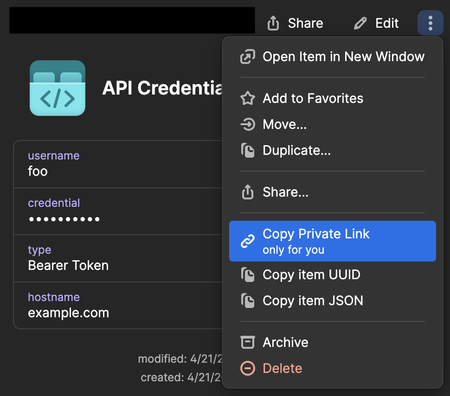
This applies to all platforms (not just Mac), but I didn't see a community category for "all platforms", so I'm choosing Mac because it seems to have the highest user activity Perhaps I've missed some documentation, but I don't find a way to copy a https://developer.1password.com/docs/cli/secrets-reference-syntax/ using the desktop app. This seems like a basic and essential task during development. What I want is this format: op://vault_id/item_id/section_id/field_id or if the value isn't in a section: op://vault_id/item_id/field_id How can I do that easily — and get a secret reference defined by ID values (which should be immutable — vs. name values which can be modified)? More context: I find some ways to construct the URL manually (but this is not ideal): A URL can be copied which includes the vault and item ID among other query parameters: I get one in a format like this: https://start.1password.com/open/i?v={VAULT_ID}&i={ITEM_ID} However, that's not enough as it doesn't include the section/field, and would need to be manually edited or processed by other tooling as an additional step to get the required output. I can also use "Copy item UUID" and then paste that as an argument to a manually-typed CLI command to get much more than what's needed: % op --format=json item get x5k2wndiih6cmw2rugl7ol442i { "id": "x5k2wndiih6cmw2rugl7ol442i", // --- snip --- "vault": { "id": "{REDACTED_VAULT_ID}", // --- snip --- }, // --- snip --- "fields": [ // --- snip --- { "id": "credential", "type": "CONCEALED", "label": "credential", "value": "abc123", "reference": "op://{REDACTED_VAULT_NAME}/API Credential/credential" }, // --- snip --- ] } However, this still involves either manually copying+pasting IDs or using other tooling to parse and create the required output. The JSON does include a reference value for the target field, but the reference is built using names, which isn't satisfactory for the reasons described previously. For the example above, what I want to copy to the clipboard is the following (where {VAULT_ID} is replaced by the actual vault ID): op://{VAULT_ID}/x5k2wndiih6cmw2rugl7ol442i/credential I think that if the boolean option is enabled at Settings > Advanced > Show debugging tools: then there should be an option to copy a complete ID-based secret reference for every field in its contextual menu: This is a re-posting of previous issue — the 1Password team stopped responding and it was closed without comment: https://1password.community/discussion/139642/copy-secret-reference-using-id-values 1Password Version: 8.10.48 Extension Version: Not Provided OS Version: macOS 15.0.1 Browser: Not Provided318Views1like10CommentsHow To enable Flatpak VScode, toolbox and 1password to integrate together
Since i have been struggling on this way too long and it was keeping me out of developing and my setup workflow wasent working i was determinate to quit first and go to mutable systems, but something kept me pushing my limits and figure how this total setup can be done and i have finally cracked the code to make flatpak VScode to connect to toolbox as user and enable 1password authentication to commits and secrets. The journey wasent easy and i think i got more gray hair than i should of have, but after i got it working spending literally a week to test wipe, broken kinoite, wipe again now it works. First lets start that on this system at this point you still need 1password and 1password-cli as layered and that is only layers on my setup with nvidia rest are systemd-sysext and flatpaks. First add 1 password repo Edit the repo file and remove ” from gpgkey sudo nano /etc/yum.repos.d/1password.repo Then just rpm-fusion install 1password 1password-cli Reboot Login to your vaults and app as normal Now comes the parts what kept me frustrated for days wahs that the old wrappers we used to use with podman-host dont work anymore and vscode cant see containers and if we layer VScode it is on root and this wont work. So what i actually found there is the script that makes everything for you and it works https://github.com/owtaylor/toolbox-vscode This made things so much better follow the installation method and then enter you toolbox container and type code and magick happens Now comes the 1password issues where i got it 80% working but it never worked since it was looking that /opt/1Password/op-ssh-sign': No such file or directory error:fatal: failed to write commit object So lets start getting Flatpak permissions and this was taken from Dave Jansson guide https://davejansen.com/using-vscode-flatpak-with-1password-ssh-git-signing/ Thank you for that and follow the guide as it explains all what needs to be done Then comes the last part to fix the signing issue and that took me way too long time to figure and solution is so simple. Go to your git config file and just remove the line that says program = /opt/1password/op-ssh-sign and you are all good all commits are now working and 1password app prompts authentication when it detects commits or authentication is needed.Solved254Views0likes2Comments
Single login in tiled-terminal session
We use 1password-cli to identify when logging into a remote machines through linux bash terminals. We now have multiple remote machines that we want to login simultaneously and perform the same (or similar) commands. Tmux (or other like terminator) are ideal for that since we can create a tiled-window, and synchronize all panes. However, currently the issues is, if we want to login onto multiple machines, I have to type the password into the GUI-pop-up from 1password once per remote machine. Is there a way to create a tiled login from a single-tmux-session with a single login? I guess it would require some persisting of the login state / environment? But it is unclear now how this is handled by the terminal. Thanks in advance. Best, LukasSolved239Views0likes5CommentsTrouble signing git commits from docker container
I am trying to set up a Linux dev container on my Windows machine. I am using VSCode Dev Containers which is doing some SSH magic that was able to get unsigned git commits to work. However, when I try to make signed commits, I get the following error: `error: cannot run [USER_HOME_DIRECTORY]\AppData\Local\1Password\app\8\op-ssh-sign.exe: No such file or directory` I saw this this other community post of a similar nature. I tried my best to follow along by: Set `SSH_AUTH_SOCK` environment variable; this didn't have explicit instructions for Windows Remove `[gpg "ssh"]` from `.git_config` Rebuild the docker image But doing so also did not resolve the issue, instead bringing up this new error: `error: Couldn't find key in agent?` Would someone be able to help me?225Views0likes0Comments1password input focus lag with lots of inputs
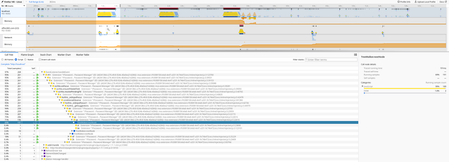
I'm running into an issue where 1password seems to significantly slow down interaction with the webpage I'm working on. There's a ton of input fields of which most are hidden, I cannot lower the amount of inputs, in fact I have to increase the amount of inputs due to how the system works. Every time I click on an input, the focus is delayed by ~200ms or so. The next time I select the same input field it's instant. 1password seems to do something that slows down the focus event. I made a performance recording in firefox. I selected 3 inputs and after the 3rd on selected the same 3 in the same order with no slowdown. I've tried adding data-1p-ignore and autocomplete="off" but it didn't solve anything.216Views4likes8CommentsFeature Request - Access vault from inside docker container
Background At our work, we spawn a Docker container that contains the tooling required to build our Yocto-based OS image. We want to pull a key from our shared 1Password vault and inject it into our OS image. Developers all have the op plugin installed and are logged in to their accounts. Problem If we install the op CLI inside the Docker image, developers have to log in to their account again when they spawn the container to get access to the vault. This is cumbersome. Our workaround is to have developers run a script before spawning the container that opens the vault on their host machine, accesses the vault through the op CLI, and grabs the key. We currently write it to disk on the host and mount that into the Docker container, which is a potential security vulnerability that we'd like to avoid. Proposed Solution I'd like to install the op plugin into our builder Docker image and access the op CLI from the host. We can do that for things like SSH - we mount the SSH_AUTH_SOCK into the container and it just proxies requests back into the host. Could there be a domain socket for the op CLI to allow us to do something similar? Similar Requests Feature Request: First-Class Support for Dev Containers and 'op' CLI | 1Password Community - but not just for devcontainers, more generic.215Views0likes8Comments