Our community is getting an upgrade on July 2nd! Learn more in the FAQs →
security tips
57 TopicsRandom but Memorable: BONUS EPISODE – Answering YOUR listener questions
Hey everyone! 👋 A new BONUS episode of 1Password's Random but Memorable podcast has dropped! Listen now Watch on YouTube Episode summary You asked, we answered! 🎙️🔐 In this bonus episode of Random but Memorable, we’re tackling listener questions from Reddit and the 1Password Community. We cover everything from why some people are still skeptical of passkeys, to the role 1Password will play in a future where AI agents sign in and complete tasks on our behalf. Plus, we dig into 1Password Environments and how it helps developers securely manage secrets. Allie, Matt, and Wade also reveal the cybersecurity misconceptions they’d love to retire for good. Short, practical, and packed with listener questions — keep them coming at [email protected] You can chat about anything discussed in the episode in the thread below!9Views1like0CommentsRandom but Memorable 17.0: How to start vibe coding without compromising security
Millions of people are leveraging AI to write code at work and in their spare time. Jeff Malnick, 1Password’s VP of Engineering for Developer & AI, joins Random but Memorable to discuss how to vibe code without introducing vulnerabilities or exposing confidential information. Listen now Watch now Episode summary In Crash Course, Roo breaks down what vibe coding actually means, why it’s suddenly taken off, and how people are using AI tools to build apps, websites, and more. Then, in Watchtower Weekly, we look at the security risks, including exposed data and leaked API keys, and why AI-built apps still need real software guardrails.📲 Later, Wade sits down with Jeff Malnick, 1Password’s VP of Engineering for Developer & AI, to discuss how to start vibe coding without creating a security risk. This conversation is packed with practical advice for anyone experimenting with AI and code.🤖👨💻 Do you have a security tip or question about vibe coding? Let us know in the thread below!34Views1like0Comments
1Password's stance on Canada's Lawful Access Bill C-22?
I'm sorry if these touches in a topic that bends to the political, but this is something that I don't think we as keepers of people's most important and sensitive information should be just standing by and not getting into the discussion before it is too late. As a Canadian and a 1Password being a Canadian based "Electronic Service Provider", based on the law's very loose definition of what an ESP is, I have very grave concerns that just like Apple and Meta the data that is contained within 1Password could be subject to this "unlawful" bill. Even my own company as small as it may be is caught up in the legal definition of an ESP. There is no scope at what an ESP is and what the government has defined and what their level of Systemic Vulnerability will be. 1Password in its current wording is caught up in this definition The powers can be extended through regulations an minimal future debate No Guardrails Secret ministerial orders requiring system modifications or re-engineering that could be demanded of 1Password with a gag order No mandatory oversight Limited ability for 1Password to challenge orders or redefine vulnerabilities Extensive Realtime access & retention 1Password would have to build the capability (at its expense) the ability to intercept, decrypt & hand over data Access to metadata, geolocation, in realtime and stored for retroactive access for all users for up to one year (with talk from law enforcement of wanting this to be even longer in the future). Basically eroding privacy and security, and weakens encryption and creates a permanent surveillance state power and, because of the conflicting sections of the Bill, the "so called" protections can be overridden by a secret request, 1Password won't be allowed to ever tell us that it had to do any of this for the government, law enforcement, or the Canadian security (spy agencies). Now I hear that because of the growing pushback on this bill, that the debate on this bill is going to be now limited to 3 days and a goal of having this law by the end of the month. Has your legal team been studying this bill? What is the 1Password stance on this invasive bill that even Apple, Meta and US Congress are voicing their concerns of this bill in its current form? If Both Apple and Meta, with huge legal and resources, are concerned that this could force them to weaken encryption, how is 1Password a Canadian company going to be able to ethically stand ground to weakened privacy, security and increased enduring real-time surveillance? I remain unconvinced that all the data and access that we all store within 1Password would not be a prime target for access requests. All we have is a verbal promise that the government would never make these kinds of requests. If not now, as Micheal Geist says, in the setting ready and waiting for a "Turnkey Totalitarianism"? I think this warrants a response and a position from 1Password before the company no longer has the legal right to do so, don't you? https://www.michaelgeist.ca/2026/05/wilful-blindness-how-the-lawful-access-charter-statement-skips-bill-c-22s-most-constitutionally-vulnerable-provisions/ https://openmedia.org/press/item/civil-society-to-parliament-kill-bill-c-22Solved431Views3likes5CommentsRandom but Memorable 16.9: Cybersecurity tips for the modern traveler
Summer is fast approaching in the Northern Hemisphere, and many people are preparing for vacations, music festivals, and meetings held somewhere more inspiring than a dreary conference room. In this episode, we explore the cybersecurity implications of travel. Tune in for a refresher on 1Password’s Travel Mode and a travel-themed interview with Gerald Auger from Simply Cyber! Listen now Watch now Episode summary Traveling soon? ✈️🔐 This week’s episode is your cybersecurity guide for life on the move. Learn how to keep your personal and professional data secure while navigating airports, public Wi-Fi, and local pickpockets. In Crash Course, we break down 1Password Travel Mode: what it is and how it can help protect your most sensitive information when traveling. Wade then sits down with Gerald Auger from Simply Cyber for a practical conversation about travel security. Do you have a question about Travel Mode? Let us know in the thread below!51Views0likes0Comments
Considering upgrading to Family
Hi folks I have used 1Password for many years to manage my passwords. I am from an IT security background and am very comfortable with this technology. However, my wife is not; she struggles with IT in general, and passwords in particular. She also accesses some financial websites which use what I consider to be archaic means of logging in, for example, "1st, 5th and 8th" letter of a password that she struggles to remember, when the password has been formulated by Safari (to my way of thinking, this encourages very poor password practices in those who are already vulnerable). Does anyone here have similar experience, and can anyone offer guidance as to how useful the Family upgrade would be to those in our situation?113Views0likes1CommentRandom but Memorable 16.8: World Password Day special!
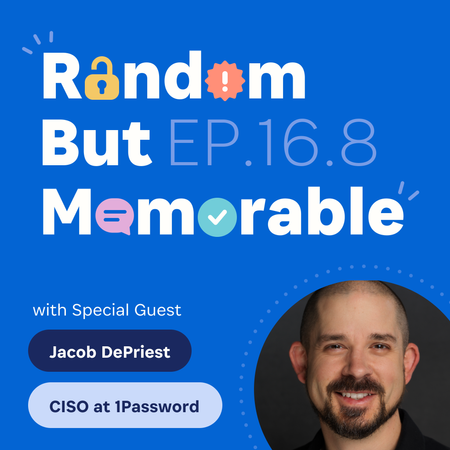
It’s that time of year again! May 7th marked World Password Day, giving us the perfect opportunity to discuss passwords, passkeys, and authentication. We’re also offering three lucky winners a free year of 1Password -- check out the episode to learn how to enter! Listen now Watch now Episode summary In Watchtower Weekly, we reveal how people are using AI tools to generate passwords… and why that might not be a great idea. Then, in Crash Course, you’ll learn about entropy -- what it actually means, and what makes a password truly strong. 🔤 Jacob DePriest, CISO at 1Password, joins the show later on to talk about identity security and the future of authentication. We cover password hygiene, MFA, passkeys, and the security challenges associated with ensuring AI agents access and use credentials securely. What did you think of this episode? Let us know in the thread below!24Views2likes0CommentsRandom but Memorable 16.7: What to do if you’ve been hacked
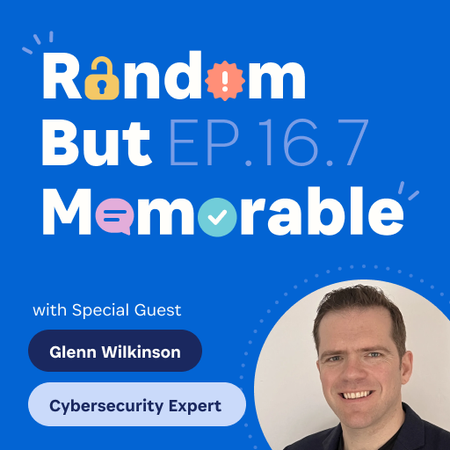
Getting hacked isn’t something anyone likes to think about. But it's possible for even the most tech-savvy and security-conscious person to be duped by an attacker. In this episode, we explain what you should do if the worst ever happens. (Just in case.) Listen now Watch now Episode summary So you’ve been hacked… Now what?! 😬🔐 Glenn Wilkinson, cybersecurity expert and co-founder of Agger Labs, explains what to do if you, someone you love, or your organization gets hacked. From ransomware to compromised email accounts, Glenn shares clear advice on how to respond, recover, and stay calm under pressure. 😌📲 In Crash Course, we break down the meaning of open-source security. Later, in #Ask1Password, we share tips for helping your team actually adopt 1Password Enterprise Password Manager after a rollout. Got questions, or comments about this episode? Let us know in the thread below!66Views0likes4Comments