
dfibuch
August 27, 2026

Feedback: Universal sign-in, a new Autofill Experience

  • August 27, 2026
  • 166 replies
  • 424 views

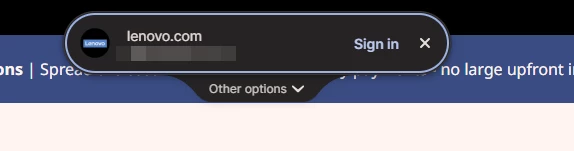
Noticed this morning this Sign in prompt when I go on a site that is stored in my 1P. Can’t find any info about it. Anyone got any ideas when it was released and do we have any control over it?



Pinned Reply By 1P_Dave

Hello folks! 

Thanks for all the feedback everyone has shared about 1Password’s new universal sign-in experience. 1Password now brings password, passkey, and other sign-in options into a single and convenient prompt for all of your logins. 

As we continue refining the new experience, based on feedback and reports from customers, the new experience has been temporarily turned off for 1Password Business users. If you use 1Password through your employer, you’ll see the classic experience for now. We plan to re-enable the new experience for business customers soon and will share updates as they become available.

If you use a personal 1Password account, and you’d like to use the classic experience too, you can follow these steps: 

  1. Right click the 1Password icon in your browser’s toolbar and select Settings.
  2. Choose Autofill & save from the side menu.
  3. Toggle off Use universal sign-in for logins.

-Dave

166 replies

September 2, 2026

There must have been an update where it moved the extension bubble to the top middle of the screen instead of the top right. Now I have to open the extension to copy the password and paste it instead of having the little icon in the password bar. This is creating too many clicks. Please put back to how it was before. 

1P_Dave
1Password Employee
1Password Employee
September 3, 2026

@Sheena 

Thank you for reaching out! It sounds like you’re seeing the new sign in experience, you can go back to the previous experience by following the steps in the pinned post here

That being said, I’d like to understand why you’re copying and pasting the password. You should be able to sign in to the website with a single click using the new experience: 

The new experience should require fewer clicks than the previous experience so I’d like to know what isn’t working for you so that I can share that with our team. Which website are you on and what happens when you click Sign In? 

-Dave

September 3, 2026

With the new experience, it doesn’t fill in the password if it’s on a new page, then the prompt above goes away. The little drop down icon isn’t showing up on the password line so I have to click on the 1Password extension to cop the password and then paste it in it’s place. 

September 3, 2026

As long as the current system stays I don’t care about this. As a lot of people said, it’s actually a big step backwards in usability, and too many people who call themselves UX don’t really care about the USER’S experience, just how things look to the UX designer. Does the new thing look nice? It does! It pops up automatically, it’s got rounded corners, it’s uncluttered, great font, subtle colors. And those are also reasons why it’s not good for usability. 

The exiting UI pops up automatically when I click in a login box, because I told the browser I want to type in there and that signals to 1P that I’m looking to log in. Popping up automatcally on page load offers the user an action they didn’t ask for, and obscures what’s already in the page, telling the user 1Password is more important than the user or the page.

It’s uncluttered, but the clutter is other menu items that used to be shown by default. I could select those logins without an additional click. So you took the click where I told you I wanted to perform an action, and instead made it a “you didn’t predict me right” button EVERY SINGLE TIME THE USER CLICKS it. You literally made it a “piss the user off” button.

You moved it to the top of the page. Do you know how I discovered that? I clicked a password login box and didn’t see any data from 1Password. I assumed 1Password was broken. I looked to the 1Password extension icon, and then saw the UI. Great, so now you’ve disconnected the mental link between the login field and the UI, so if I interact with the UI I have to reframe my focus out of the page and what I was doing to conform to this new more disruptive workflow. I immediately turned it off.

The font is fine, but again, we’ve taken a clean UI and made it harder to view with light grey on medium grey. Who thinks that’s readable?

I don’t expect anything of what I’ve said to make even a momentary difference. I’ve learned that once an app starts going down the stupid-UX path they are not going to listen because success is now measured by how the UI makes the designer feel, rather than the user.

So all I’ll ask is please leave the old UI alone. There’s no legit reason to remove the old workflow, it’s better in every way except it’s not new. That’s ok, though.

September 3, 2026

This new Universal sign-in UI is not a good design. having to click on the popup at the top of the page vs clicking the pop-up next to the login prompt. This new way seems like something Microsoft would have designed. I turned it off.

September 4, 2026

I really don’t like the new design.  It’s extra work.  Also, since the update, 1Password has been very slow in showing the account dropdown.  Typically I go to a site that requests a login and just start typing the login I want o use and either just hit enter on it or arrow down to it and hit enter.  The new design forces you to use the mouse to click the down arrow and scroll through your options.  I have many different logins for the same sites and this definitely is an uncomfortable option.  Chrome wasn’t giving me the option to disable until I updated it.  Please try to make it as accessible and quick as the current design.

September 4, 2026

I’m a 1Password user in Japan, using the Japanese interface.
I previously used another password manager, but I moved to 1Password several years ago because I was impressed not only by its features, but also by the company’s strong and consistent focus on security. I’ve been a big fan of 1Password ever since.

The new autofill experience reached my environment this morning. I think continuing to explore and improve the UX around autofill is a worthwhile effort, especially given how difficult this problem is across the enormous variety of login flows on the web.

That said, I’ve already encountered several issues similar to those reported by others in this thread.
My environment is:
* Windows 11 25H2,  Google Chrome 152.0.7977.83, 1password Extension 8.12.34.34
* 1Password with the Japanese interface

So far, I’ve observed the following:
* There are several sites where I can no longer log in successfully, even though they worked normally before.
* The problems seem to be particularly noticeable on sites where I use multiple accounts for the same URL.
* I followed the instructions to disable the new autofill feature, but it does not appear to actually be disabled. I also tried locking and unlocking the 1Password extension, restarting Chrome, and restarting the PC, but the behavior remains unchanged.
* Because several login attempts failed, I was locked out of one site and had to reset my password.
* The issue that concerns me most is that, while troubleshooting login problems on sites where I use multiple accounts, the “last modified” date of the related 1Password items was updated to today. As far as I can tell, the saved contents themselves have not changed, but I did not intentionally edit those items. I would feel much more comfortable if I could understand exactly what was modified and why.

I fully appreciate how difficult it must be to build autofill logic that works reliably across the many different ways websites implement login forms and authentication flows. Trying to create a smoother and more automatic experience in that environment is an ambitious and valuable goal.

At the same time, I think password managers have a somewhat unique UX requirement.
Because they handle such sensitive information, it is important for users to have a clear sense of what information is being filled in, what is being changed, and what is being sent to a website. It is also important that users can reliably disable new behavior when necessary.
So as the new autofill experience continues to evolve, I hope the team will consider not only convenience and automation, but also transparency and the user’s sense of control over their credentials.

One other suggestion that might make this thread more useful to the development team: if there is specific diagnostic information that would help investigate these issues, it might be useful to provide a short checklist of what users should collect.
For example:
* OS and version
* Browser and version
* 1Password extension version
* Type of login form or login flow
* Whether multiple accounts are used for the same site
* Relevant logs or diagnostics

If the team can tell us what information is most useful, I suspect many people here - myself included - would be happy to provide more structured reports.
I’m sharing this as someone who has trusted and enjoyed using 1Password for many years, and I hope this feedback can help make the new experience better.

September 4, 2026

I can see the benefit of the new Universal Sign-on feature, especially in combining the different login methods into a single experience. That said, personally, I’m not a big fan of animations and overlays. I prefer fast, snappy interactions with a system, so I’m glad there’s also an option to disable the new autofill experience:

"Use the new autofill experience for sign in: Our next-generation autofill combines all login types into a single sign in prompt."

However, I’ve noticed that on some pages, disabling this option only prevents the overlay from appearing when the login page loads. After completing the login process, the overlay is still visible with the message “Finish signing in on this page,” even though I’m already signed in.

IMO, it would be great if disabling the new autofill experience in the settings completely disabled this experience, including any overlays that appear after the login process.

September 4, 2026

I would call this a bug report, not a question or conversation, but there is no choice for “bug report”.


Subject says it - I’m using Brave, and when Universal Sign-In kicks in, I am unable to access the standard handling the browser provides for passkeys. This means that I can’t use passkeys stored anywhere other than 1Password, or ones provided by physical devices like my Yubikey. 


I found that after several attempts (just activating sign-in in the web app, it timed out after a while when I was clicking around the Universal Sign-In UI, trying unsuccessfully to find a way to bring back the standard browser dialog), the Universal Sign-In mechanism was somehow dropped, the UI went away, and then my next click in the app I was trying to sign in to suddenly brought up the browser dialog. But I’m not sure if this was intended behavior, and in any case it was way too fiddly for comfort. 


In case it matters, the sign-in in question is handled by a standard Keycloak installation, and it worked flawlessly in any browser before 1Password Universal Sign-In came along.

September 4, 2026

The item on the left is just called “Autofill.” There is no option to turn off the feature.

Mac, OS 26.6.2

1Password for Mac 8.12.34

81234034, on PRODUCTION channel


September 5, 2026

@MarkLoundy You’re checking in the wrong place. Universal Autofill, macOS Autofill, and Universal Sign-in are three different features. IMO, the terminology is quite confusing.

If I’m not completely mistaken, this thread is about the new Universal Sign-in feature.

Check the settings of the 1Password browser extension and go to Settings > Autofill & save. There, you can turn off the new login autofill experience.


September 5, 2026

The extension was indeed where it was. Thanks. Keeping my fingers crossed.

September 5, 2026

I don’t mind the popup, except that there are 2 main issues with it: 

  1. It often shows when I’m already logged into a site with a message about returning to the sign-in screen.  This is quite weird behaviour. I get that it would show up when I’m on a login screen, but when I’m already logged in, why is it showing and telling me to return to the sign in screen?
  2. The “other options" drop down doesn’t have a search. When we have a long list of credentials to pick from, the list needs to be searchable. I have some sites where our team as 30+ credentials to pick from. In this new interface, there is no way to search/filter the list of credentials to quickly find the one we want to use.
September 5, 2026

Exactly. It’s asking me to log in when I’m already logged in and the pop-down goes to a dead end.

September 5, 2026

So far I have found myself really liking this new feature, but it seems to be a bit aggressive. It will pop up on pages where I am already logged in. And don’t have a login field. I don't know if it auto times out after a while, but since it’s front and center it is a bit distracting so I keep closing the window. (I’m only noticing this on one of my macs right now. It’s an older 2017 iMac that is stuck on macOS 13.7.8. Haven’t been on my mac Studio lately to notice if I have the new feature there yet.)

1P_Dave
1Password Employee
1Password Employee
September 10, 2026

Thank you for the feedback!

It will pop up on pages where I am already logged in. 

This is a known issue on a few different sites, so that we can get this fixed, can you share a little more information about these sites with our support team: 

  1. Open the website in question and sign in.
  2. Wait until you see the sign-in prompt appear when you’re already signed in. 
  3. Right-click on the page and click "1Password - Password Manager" > Help > Collect Page Structure. 

Attach the resulting JSON file to an email message addressed to support@1password.com

With your email please include:

You should receive an automated reply with a Support ID number. Please post that number here. Thanks very much!

-Dave