

1Password Employee
August 11, 2026

macOS AutoFill is now available to everyone!

  • August 11, 2026
  • 40 replies
  • 120 views

Hey everyone!

Native macOS AutoFill is now generally available in 1Password for Mac. This has been one of the most requested features for years, and it's now ready for everyone on the stable channel.
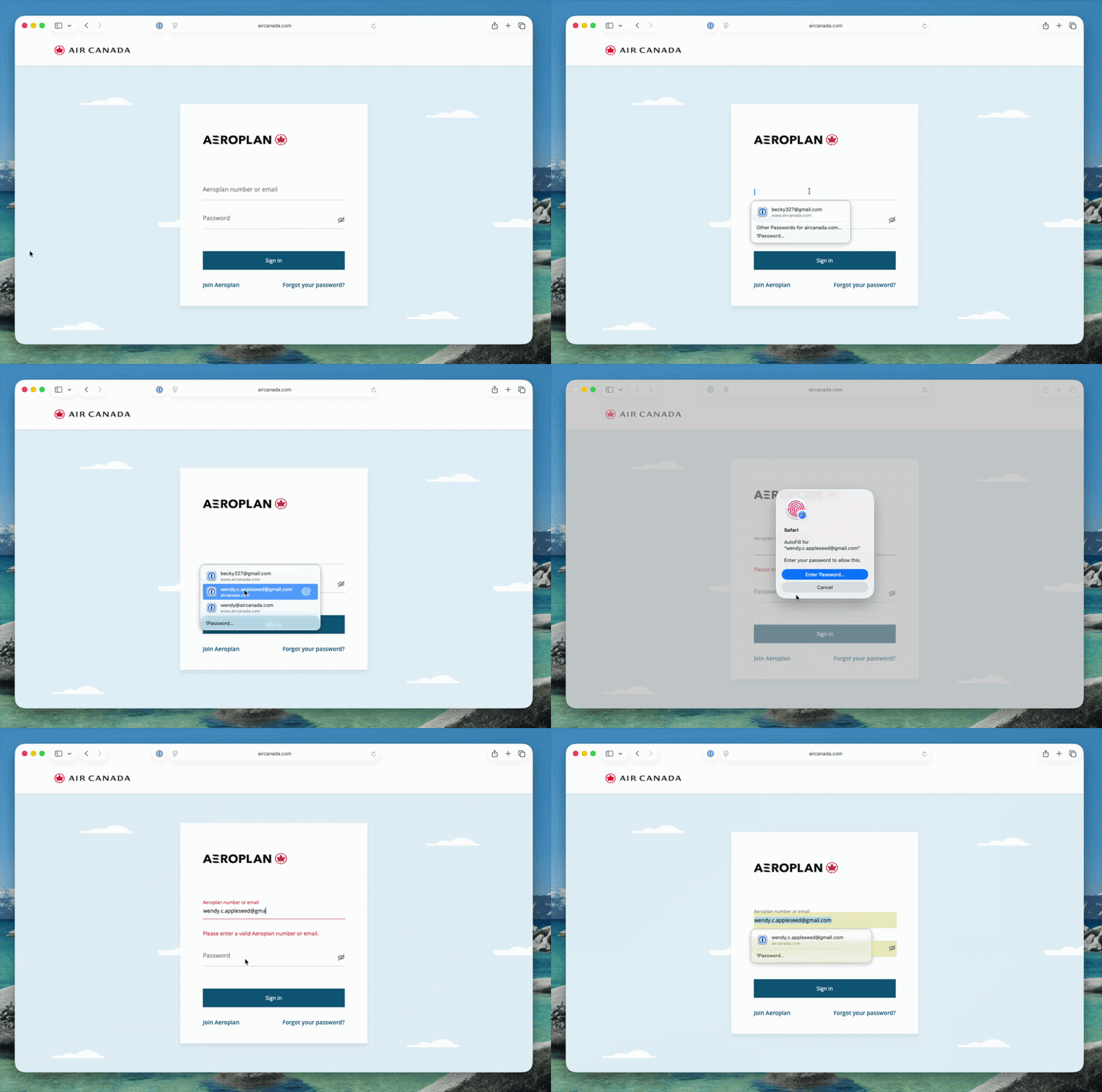


Here's what macOS AutoFill gives you:

  • By adopting Apple's Passwords API, 1Password functions as a native Credential Provider on macOS for logins. You can view autofill suggestions directly within Safari and other supported desktop apps.
  • Passkey support is built in. Fill, create, and update passkeys easily through macOS AutoFill.
  • The 1Password Safari extension works alongside macOS AutoFill. Login suggestions appear in Safari's native menu, and the extension continues to fill credit cards, addresses, and other items the Passwords API doesn't support yet.
  • One-time code support through the same integration is on the way and will land in an upcoming release.

How to turn it on:

  • Update to 1Password for macOS 8.12.32 or later.
  • Go to 1Password for Mac Settings > Autofill > Set up macOS AutoFill, then select "Turn On" from the macOS permission prompt. You'll see "Active" status once it's enabled.

Full setup and troubleshooting details are in our support article.

To everyone who tried the beta over the past few months: thank you! Your feedback directly shaped this release. We're happy to be one of the first credential managers to adopt these APIs, and we want to keep getting it right for you. Try filling logins and passkeys and let us know how it goes in the comments!

40 replies

mtissington
August 12, 2026

Just upgraded and Mac Autofill is not working.

In your Get Help you say I should see the following but I do NOT see 1Password in Automation.

Yes, I have restarted 1Password and was prompted to setup Mac Autofill and I have created a new Login Item of type Mac Login.

1P_Dave
1Password Employee
1Password Employee
August 12, 2026

@mtissington 

Where did you see instructions to add 1Password to Automation for macOS AutoFill? You would only need to see 1Password there for Universal Autofill and Terminal, not for the new macOS AutoFill feature being discussed in this thread. 

To setup macOS AutoFill with the latest version of 1Password for Mac, follow these steps: https://support.1password.com/macos-autofill/#set-up-autofill-in-macos-and-safari

Let me know if you run into any issues. 

-Dave

August 12, 2026

After the update, the 1Password extension for Safari no longer links with the macOS app, it says there’s a connection problem. So the Extension is useless.

Also the autofill flow does not look like in the animation shown in the announcement. When I click a password field I don’t see all the login items like in the animation, I see only a drop down with “1Password...” item, I have to click on it, which opens a window where I have to select the item I want to autofill, and only after selecting it will it autofill the password, the process is extremely convoluted and something is definitely not right.


1P_Dave
1Password Employee
1Password Employee
August 12, 2026

@JohnIT 

I’ll reply below: 

After the update, the 1Password extension for Safari no longer links with the macOS app, it says there’s a connection problem. So the Extension is useless.

This is a known issue that our team is investigating and unrelated to the new macOS AutoFill feature, see this thread here: 1Password for Safari does not integrate with main app

Also the autofill flow does not look like in the animation shown in the announcement. When I click a password field I don’t see all the login items like in the animation, I see only a drop down with “1Password...” item, I have to click on it, which opens a window where I have to select the item I want to autofill, and only after selecting it will it autofill the password, the process is extremely convoluted and something is definitely not right.

Can you make sure that filling suggestions are turned on: 

  1. Open and unlock 1Password for Mac.
  2. Click on 1Password next to the  in the menu bar.
  3. Click Settings.
  4. Click AutoFill and then make sure that “Show filling suggestions” are turned on.

If you still see the same issue when can you share the address of one of the websites where you’re seeing the issue? 

-Dave

August 12, 2026

@1P_Dave 


After a full reboot of macOS some autofill suggestions started showing up. But it will only autofill if the first item that it suggests is the one I need. If I have multiple entries for a domain like “mydomain.com” I have to click on “Other password for mydomain.com” and the dropdown expands with more options, but all the options I choose from there involve the same window popup (which this time is unpopulated) and I have to search for the same item again in order for it to fill. 


Here are some screenshots:

I click on “Other password for mydomain.com”

I find the desired login and click on it.

A blank popup shows where I have to use the search field and search for the exact item I selected previously from the dropdown.


Hope this helps identify what’s going on.

alistairmck
August 12, 2026

hi,  I enable something in autofill as a popup box asked me to enable it.  but now when on a website login screen on my Mac Studio,  now each when I go onto a website and try and log in,  it asks me to enter my master password or TouchID before infilling relevant log in details.  how do I stop software asking for my master password on each entry? not sure if it is 1password extension setting or main  1password software settings I change


thanks in advance

1Password Employee
August 13, 2026

Hi ​@alistairmck , there is a setting that can help here that apple defaults to ON.  In the macOS system settings->TouchID & Password->Use Touch ID for autofilling passwords.

With that setting ON, it essentially requires 2 separate touch events to fill, one for 1Password and then one for macOS.  You can turn off the Use Touch ID for autofilling passwords to smooth out that process and only require one TouchID event and then if you have your 1Password security settings to unlock with with device, 1Password will be unlocked when you are logged in and smooth that out even further if desired.

alistairmck
August 13, 2026

hi ​@craski,  thanks for info,  got problem sorted.  thanks.  definitely thought the setting would have been in,  1password settings and not macOS system settings.  thanks again

August 13, 2026

1Password 8.12.33. Safari Extension 8.12.29.1. maOS 26.6.1. Safari 21624.4.5.11.5. Even though 1Password is unlocked, I am still prompted to unlock it. I can then successfully access the page, but after logging out and going on to another site requiring a login, I am prompted to unlock it again. The app and extension are integrated. Also, the 1Password icon does not appear in the login box. Instead the Passwords icon appears and when I click it the 1Password login credentials are shown These are my app settings.

These are my extension settings.

Notice that “Show logins in autofill suggestions” is grayed out. Following are the Autofill settings in the app. There is no way to enable that setting. The autofill settings in the app follow.


1P_Dave
1Password Employee
1Password Employee
August 13, 2026

@billdouglas 

Thank you for reaching out! It looks like you’ve enabled the new macOS AutoFill feature so I’ve moved your post to our announcement thread for the feature. 

Even though 1Password is unlocked, I am still prompted to unlock it. I can then successfully access the page, but after logging out and going on to another site requiring a login, I am prompted to unlock it again. 

This is a macOS setting that is defaulted to on, you can turn off the Touch ID prompt using these steps: 

  1. From the menu bar, select the Apple menu  > System Settings.
  2. In the sidebar, select Touch ID & Password.
  3. Turn off Use Touch ID for autofilling passwords.

I hope that helps! 

-Dave

August 13, 2026

All that does is require me to enter my master password when the extension and app are locked. Before release 8.12.33, I was able to use Touch Id or my user password to unlock and then not be prompted again until the Mac was shut down and started. I do not want to have to enter my master password to unlock 1Password.

August 13, 2026

I tried this feature for half a day and turn it off. With 1password autofill when I select login field it shows the credentials, one tap and it’s done. This new thing seems takes many taps here and there, and system autofill sometimes overlaps the 1password one. Too much fuss, I turned it off for now.

August 14, 2026

How did you turn it off? In Autofill settings it shows MacOS Autofill active but there is no way to turn it off.

August 14, 2026

I turned off autofill from 1password in macOS Settings > General > Autofill & passwords

Joelc
August 14, 2026

Apologies should this be obvious but I am very confused by this.


  1. I do not understand how macOS AutoFill is different from the previously functionality where I move focus to a login field, the various sign in credentials would appear and I could very easily log in simply the selecting the the credentials I wanted (i.e., it was auto filled).
  1. I do not understand why I am now getting two sets of drop-down / options (i.e., the old ones and new ones with the 1Password logo); what  is the difference.
  2. I was hoping that this capability -- at least as I red to -- would allow for OTP password to  also be auto filled. I am fining that sometimes it works / does not work.  Could this be a function of the website (i.e., some allow it and some do not)?
  3. If I ultimately wish not to use it, ho who I deletes its sentry from System Settings per teh image (i.e., I do not recall 1Password ever being in Login & Extensions?


Much thanks.


1Password Employee
August 14, 2026
  1. macOS native autofill uses functionality provided by apple that allows 3rd party password managers like 1Password to hook into the apple provided mechanisms that fill into apps and websites in Safari.  1Password provides the data, apple macOS fills it.  A browser extension does not use apple to determine what to fill or actually fill it so has more control in some circumstances but is bound within the browser where the apple provided mechanism can work in and out of the browser.  There are pros and cons to both.
  2. You should not be seeing both sets of filling suggestions overlapping, there is code in place to prevent that happening.  Can I ask you to check you are running the latest version of the 1Password browser extension.
  3. The new native extension is supporting one-time-codes where the website is correctly advertising that is available and where the apple system is recognising that ability.
  4. 1Password.app on macOS had an entry in you allow background activity list prior to any recent updates, turning that off may impact the ability of the app to function correctly.
Joelc
August 14, 2026

Appreciate the response noting:


  1. Ah, so the differs is that macOS AutoFill works inside and outside of a browser whereas the “old approach” is limited to a browser?  What are the other pros and cons that you referenced?
  2. Confirmed, browser extension is 8.12.29.1 with no updates shown in the App Store.
  3. Is my understanding correct that whether a given website autofills with the one-time-code is a function of teh website; some will, some wont depending on the design?
  4. While I understand that, I never had it load at login and may wish to remember it should I not use macOS Autofill, how to remove it from Login & Extensions?

Thank you.


August 14, 2026

I am still having the issue. I have desktop app version 8.12.33 but the extension is not responding at all now, even though it is integrated with the app. I tried uninstalling and reinstalling the extension and it still doesn’t work. The only way I can log in to a site now is to open Quick Access and search for the site I want to log into.

August 14, 2026

I also tried turning off Use Touch ID for autofilling passwords and Unlock with device is set to Always. Still no response from the extension.

1Password Employee
August 14, 2026

@billdouglas can i suggest that you seek some help from our customer support, there may be more issues at play here that our support should be able to help determine and get you back on track again.

August 15, 2026

My issue is fixed. For anyone who wants 1Password to work like it did before macOS Autofill became available in versions 8.12.32 and 33, you must turn off macOS Autofill. The proper way to do it is: 

  1. From the menu bar, select the Apple menu  > System Settings.
  2. In the sidebar, select General, then select AutoFill & Passwords.
  3. Under “AutoFill from”, turn off 1Password.
  4. Select the 1Password icon in the menu bar, then select Quit.
  5. Reopen 1Password and sign in with your master password.
dtoub
August 14, 2026

I can’t seem to turn this off. Too many clicks since macOS is running things now through its own Passwords app and I have to select 1PW each time in the dropdown. I turned off autofill in system settings but then, I can’t autofill anything even via 1PW. I have the 1PW safari extension off (although having it on or off doesn’t change anything) and autofill on in System Settings (otherwise I get no autofill prompts even from 1PW) and I get stuff like this:

So how can I go back to what I had before enabling macOS autofill for 1PW? This is really a step backwards for my own use, at least in this form. Thanks.

August 14, 2026

With macOS AutoFill enabled, 1Password no longer displays an autofill confirmation prompt (see Manage autofill confirmation prompts) when the setting “Ask before filling:  All logins” is enabled.

Can others in this forum replicate this behavior?  Is it intentional?  (Thank you)

P.S.:  I am running 1Password 8.12.33 on macOS 26.6.1.