


Setting up 1Password for large organizations
This guide is available in a downloadable PDF format below.

Glossary
Before getting started, here's a quick breakdown of all the different terms you'll come across in this guide:
Owner
Owners have full administrative privileges and can manage billing, groups, vaults, add and remove team members, and initiate account recovery. Each team has one Owner by default (the person who created the team), but additional people can and should be added to the Owners group as backups.
Administrator
Administrators can create and archive vaults, manage permissions for those vaults, invite others to the team, and initiate account recovery. The creator of each team is in the Administrators group by default. Additional team members can be added to the Administrators group.
Site Administrator
If your organization works out of multiple locations, you'll want to assign Site Administrators. These specialists will have Administrator status in 1Password, but only focus on the employees at their specific location
Groups
1Password comes with three built-in groups you can use to delegate administrative responsibilities to your team members. In a team, capabilities vary depending on group membership. With 1Password Business, you can also use custom groups.
Vault
Vaults let you organize your data and control who has access to what. They can be shared with some or all team members and can be created for a variety of different audiences and purposes.
How to set up 1Password Business in a decentralized organization
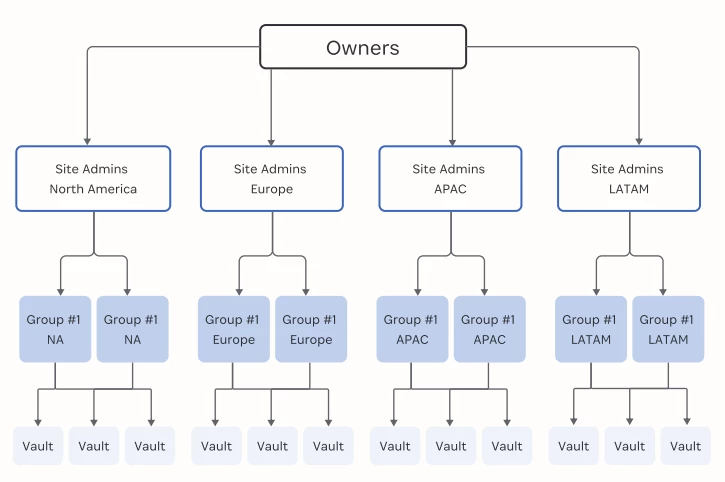
Many organizations are split into divisions that work completely autonomously. They could be separated by region, area of work, or something else entirely. If your team uses this model, you'll want to approach 1Password in the same way, and assign Site Administrators to each unit.
Example use case: You have five distinct business units using 1Password in different geographical sites and would like Administrators for each unit. Instead of using the default Administrators group, you will create separate custom groups for each unit:
Workflow steps
- Create custom groups for each business unit and add the selected Site Administrators
- Give Site Administrators the desired level of permissions. At minimum, include the permissions Create Vaults and Recovery
- Develop a vault-creation workflow of your own or follow this commonly used workflow
- End-user requests the creation of a vault (this can come in an email, ticketing service, etc.)
- Site Administrators receive that request and collect details to create the vault (For example, the name of the vault, who else should have access, etc.)
- When the vault is created, the Site Administrator will add the custom group of Site Administrators for that business unit and ensure they have the Manage permission turned on. This is what will allow Site Administrators to make further changes to this vault if needed
- The Site Administrator who created the vault should now remove themselves as an individual user from the vault. They will still have Administrator privileges because they're part of your account's overarching Site Administrator group, which can manage any vault
- Add the remaining users or groups to the vault along with the desired permissions.
To learn more about scaling your organization and how best to set up your teams with 1Password Business, please reach out to your 1Password customer team.
Download the full guide below.