Protect what matters – even after you're gone. Make a plan for your digital legacy today.
Forum Discussion

RaymondSeeger
5 months agoNew Contributor
auto-filling information on a "non-password" page
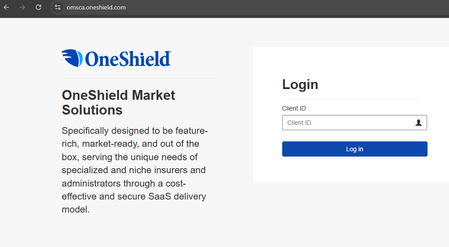
We've set up a user with 1Password, and one of the complaints they have is that now the TenantID / Client ID on a specific page we use multiple times a day is no longer auto-populating, I take it chr...
- 5 months ago
Hi RaymondSeeger! Thanks for joining the Community.
I did some testing with the OneShield site and found I could fill a client ID with some modifications to an item. Here's what I did:
- Open and edit an existing OneShield item, or create a new one.
- Select + add more > Text.
- Replace "text" in the field head with "Client ID".
- Enter the user's client ID in the text field body.
- Confirm the OneShield website is included in the website field, then save the item.
On the OneShield website an inline prompt from 1Password doesn't seem to appear, but I could fill a client ID by clicking the 1Password icon in my browser's toolbar, then clicking autofill in the OneShield item. Does that work for you if you set your item up the same way? Thanks again!

1P_Timothy Community Manager
5 months agoCommunity ManagerHi RaymondSeeger! Thanks for joining the Community.
I did some testing with the OneShield site and found I could fill a client ID with some modifications to an item. Here's what I did:
- Open and edit an existing OneShield item, or create a new one.
- Select + add more > Text.
- Replace "text" in the field head with "Client ID".
- Enter the user's client ID in the text field body.
- Confirm the OneShield website is included in the website field, then save the item.
On the OneShield website an inline prompt from 1Password doesn't seem to appear, but I could fill a client ID by clicking the 1Password icon in my browser's toolbar, then clicking autofill in the OneShield item. Does that work for you if you set your item up the same way? Thanks again!


