Level up your business security with free, on-demand training and certification. Explore 1Password Academy today →
Forum Discussion

billdavies
10 months agoOccasional Contributor
1Password instead of Passwords
I just installed MacOS 26 public beta. I do not have an option in System Settings to make 1Password the default password manager. Ideas? I've read all the articles about browser extensions but tha...

1P_SimonH Community Manager
10 months agoCommunity ManagerHi billdavies,
Thanks for your question. 1Password doesn't use the "Autofill & Passwords" feature in macOS System Settings, so if that's where you're looking, you won't see it listed there.
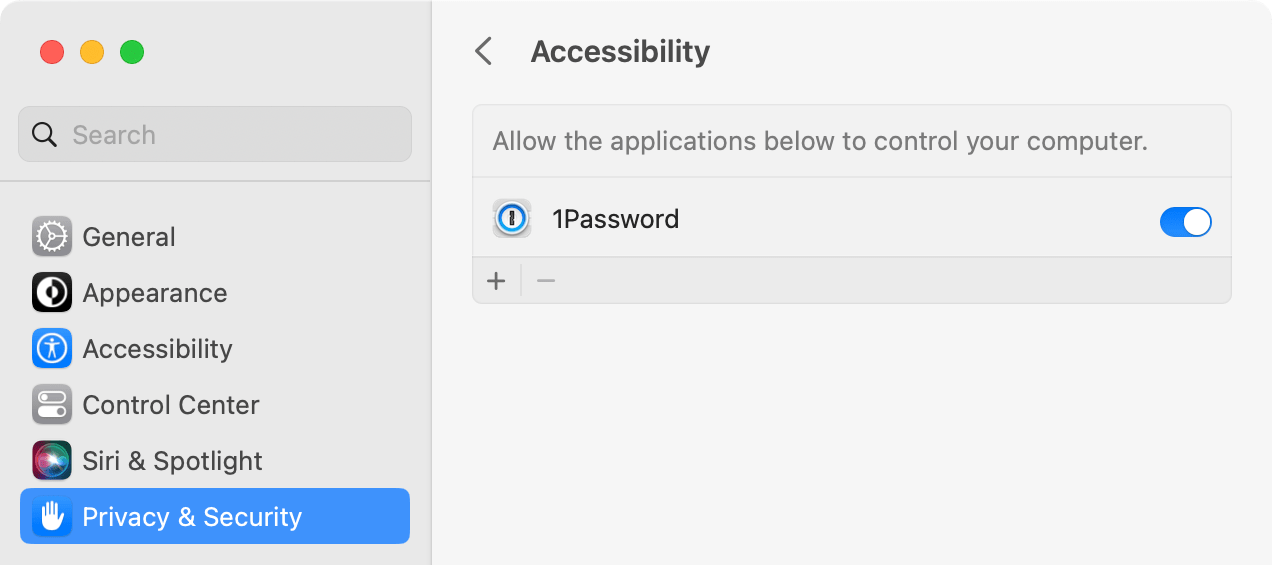
Instead you can fill and save logins using either 1Password in the browser (our browser extension) or using Universal Autofill in the Accessibility settings
The instructions in the Universal Autofill article should still apply, even running the macOS 26 beta. If you're seeing something different, though, please post a screenshot and we'll figure out what's going on!

billdavies
10 months agoOccasional Contributor
So you're saying top button on, second button off? Seems like 1P is getting Sherlocked.
- 1P_SimonH10 months ago
Hi billdavies,
You can just turn the top toggle off, AutoFill Passwords and Passkeys, then follow the steps to configure Universal Autofill in the Accessibility settings and you'll be all set.
Competition from other password managers isn't a bad thing – it keeps us focused on improving :)- billdavies10 months agoOccasional Contributor
I may need some help finding what you mean in Accessibility. There are 22 different areas/topics to click when I click on Accessibility.
- 1P_SimonH10 months ago
No problem at all!
- Choose Apple menu > System Settings.
- Click Privacy & Security in the sidebar, then click Accessibility in the list.
- Click the toggle beside 1Password, then enter the password you use to log in to your Mac.
If you don't see 1Password, click the + button, enter the password you use to log in to your Mac, and locate the 1Password app in your Applications folder, then select it and click Open.
From now on, you’ll be able to use 1Password for Mac to fill your usernames and passwords without opening the 1Password app.