Protect what matters – even after you're gone. Make a plan for your digital legacy today.
Forum Discussion

Anonymous
3 years agoMissing option from Fastmail Integration after data Migration from US to EU
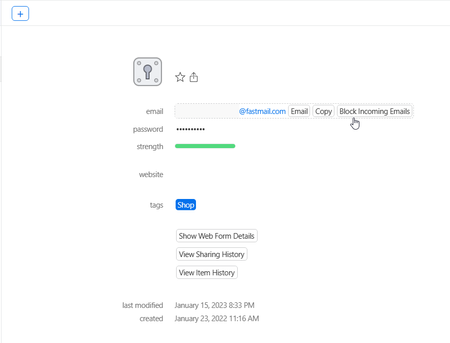
Hi, i recently moved my items from the .com site to a newly created account on the .eu side. I moved them via the export-import function of the Desktop app and also tried manually moving items from o...

Alex_C_1P 1Password Team
3 years ago1Password TeamHi there @Alekzander,
I have been doing a deeper dive into your issue and testing a variety of workflows. I could replicate the behaviour you're describing (seeing the Fastmail logo next to the email, but no "Block Incoming Email" option) by following these steps:
- Use the 1Password extension to generate a new test login with a masked email (the "create masked email" option in the extension's inline menu).
- Save the new test login item using the 1Password extension.
- Move the test login to a vault in a second account using the Move option, in 1Password 8 for Mac.
- The second account did not have the Fastmail integration set up at this point.
- Access the second account in the web interface and view the test item.
Once I turned on the Fastmail integration for the second account, the "Block Incoming Email" option appeared as expected. Further, I got the same result when I exported the test item from the first account and imported it into the second account (using the 1PUX format).
Therefore, can you confirm you have the Fastmail integration turned on for your .EU 1Password account, and that you are linked to the same Fastmail account your .COM 1Password account was?
- Apologies for the seemingly obvious questions, but as I said, with the integration turned off on my second account, I was could replicate the behaviour you are describing perfectly.
In the meantime, as Andrew indicated, you can "block" incoming emails to a given masked email using the settings in your Fastmail account. You can do so by following these steps:
- Log in to your Fastmaill account in a web browser.
- Select the drop-down menu in the top-left corner, next to the search bar, and select Settings.
- In the left-hand side bar, under the "Accounts" heading, select Masked Email.
- Locate the masked email you need (you can used the search bar at the top of the page) and select Edit.
- Select Block.
- Select Save.
Now any emails sent to that address will automatically be moved to your Trash folder in your Fastmail account.
Let me know the state of the Fastmail integration for your .EU account, Alekzander, and we can proceed from there if needed. 🙂