Our community is getting an upgrade on July 2nd! Learn more in the FAQs →
device trust
24 TopicsQ2 2025: 1Password Security Spotlight & Roadmap Review
Hey everyone 👋 Thanks for joining us for our Q2 Security Spotlight and Roadmap Review — our quarterly look at what’s new (and what’s coming next) in 1Password. 🔍 In this session, we covered: The top 3 access management challenges today: Application sprawl Device sprawl Identity sprawl Real-world use cases for 1Password Extended Access Management New features like device posture enforcement across web apps – whether they’re behind SSO or not. Upcoming support for AI agents 🎙️ Your speakers: Marc von Mandel – Director, Solutions & Channel Product Marketing Evan Sandhu – Product Marketing Associate Marc and Evan will be keeping an eye on this thread over the next few days and jumping in to answer questions. Feel free to tag them directly! 💬 Have a question? We’d love to hear it. Whether you’re looking for more context, curious how something might apply to your setup, or have ideas to share — post them below. We’re all ears. Thanks again for being part of the 1Password Community!958Views0likes6Comments
1Password for Windows app keeps requiring encryption key transfer
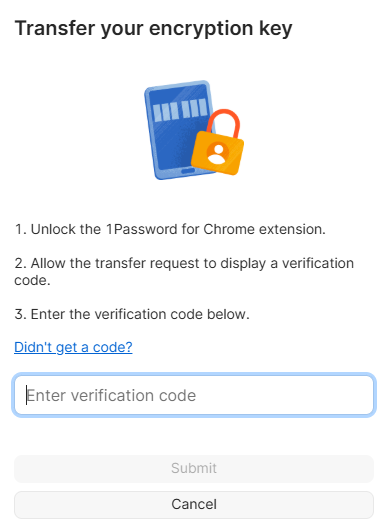
I have a business account that uses SSO for authentication. I am able to authenticate in the browser just fine and use the browser extension with no issues. When I sign in to the Windows app via SSO, I am asked to transfer the encryption key from my browser. I am able to do this successfully, but I keep having to transfer the key every day or two. Is there a way to prevent the encryption key transfer from happening or to get it to stop repeating?617Views1like8CommentsApril 2026 at 1Password: Post-quantum protection, External Checks close the access gap, and AI-era security
In April, we began rolling out new protections that will keep your data safe in a world with quantum computers, we expanded how teams can enforce access with External Checks in 1Password Device Trust, and shared new thinking on AI agents, credential sprawl, and what it takes to secure systems in a faster-moving threat landscape. In case you missed it A first step toward post-quantum security Introducing the first major milestone in our post-quantum cryptography (PQC) journey: as post-quantum protection in the 1Password web app! 1Password now supports hybrid post-quantum key exchange in PQC-capable browsers like Chrome or Firefox. It all happens automatically – no user action required. This helps protect against "harvest now, decrypt later" attacks, where adversaries capture encrypted traffic today in the hope that future quantum computers will be able to decrypt it. This is the first phase of a broader post-quantum roadmap focused on protecting your data against the threats of today and tomorrow. Read more about our first step toward post-quantum security. Building a Mythos-ready security program AI is accelerating how quickly vulnerabilities can be found and exploited, and security programs need to keep up. We looked at what security leaders can do now to prepare for a world where AI-driven vulnerability discovery happens at machine speed. The takeaway: patching still matters, but it can't be the entire strategy. Teams also need to limit the blast radius by controlling access, isolating agentic identities, replacing long-lived secrets, and making it harder for a single exploit to escalate into a larger breach. Read the full post on building a Mythos-ready security program. External Checks in Device Trust 1Password Device Trust can now factor in signals from other systems before allowing access to protected apps. With External Checks, access decisions can include more than device posture. Admins can pull in things like security training completion, policy acknowledgments, MFA enrollment, active employment status, and other verification signals from external systems. External Checks closes the gap between having a policy in place and actually enforcing it when someone tries to reach company apps and data. Learn more about External Checks in 1Password Device Trust. What we learned using AI agents to refactor a monolith We shared a behind-the-scenes look at how 1Password used AI agents to help refactor a large Go monolith. The work demonstrated how agents can be genuinely useful, especially for analyzing large codebases, building deterministic tools, and executing well-scoped changes. It also showed where they still need strong constraints, clear specifications, and human judgment. Read more about what we learned using AI agents to refactor a monolith. Protecting against OAuth-based supply chain breaches Credential sprawl continues to spread across SaaS apps, developer tools, automation workflows, and AI agents. OAuth makes it easy to connect new tools, but those connections can quietly become supply chain risks when permissions are broad, long-lived, or poorly tracked. We looked at how OAuth-based supply chain attacks happen, how Google Workspace admins can check which third-party apps currently have access, and why ongoing discovery is more effective than a one-time audit. Read more about protecting against OAuth-based supply chain breaches and credential sprawl. Chasing Entropy (Season 2) Season two of Chasing Entropy kicked off in April with three new episodes: Why secure-by-design is an incentives problem, with Bob Lord. Dave Lewis and Bob Lord get into secure-by-design principles, AI systems, software supply chains, and why security outcomes need to be owned at the organizational level. What cyber conflict reveals about power and doctrine, with Allie Mellen. Dave talks with analyst and author Allie Mellen about cyber conflict, attribution, geopolitics, and why defenders need to understand intent, not just indicators. Why friction is a security risk, with Dustin Heywood. Dave and IBM's Dustin Heywood (aka EvilMog) get into agentic AI, machine identity, quantum planning, and why security controls that add friction tend to get bypassed. Listen to Chasing Entropy wherever you get your podcasts. Random but Memorable April brought three new episodes of Random but Memorable to catch up on: What it takes to protect – and break into – data centers with Deviant Ollam Are you oversharing with AI? Author Jamie Bartlett has thoughts What to do if you’ve been hacked, with Glenn Wilkinson This month covered the physical side of security, safer AI habits, what to do after a compromise, and how supply chain attacks are feeding into one another. Release note highlights Browser extension Added settings that let you choose which item types appear as autofill suggestions in the inline menu. Reorganized Autofill settings for easier navigation. Fixed an issue where the browser extension didn’t unlock with the 1Password app. Fixed issues with the sign-in banner and Quick Access suggestions in Chrome and Chromium-based browsers on Mac. Fixed several autosubmit and website-specific autofill issues. Mac, Windows, and Linux Improved localization across supported languages. Updated the wording for unlock preset options. Fixed an issue where a LastPass import could fail if the account had multi-factor authentication enabled. Improved how 1Password recovers drafts of items. App icons shown in SSH, CLI, and SDK authentication prompts now display more quickly. [Mac only] Improved handling for shortened Apple Maps links. [Windows only] Fixed an issue where 1Password couldn’t be used as the Windows passkey manager when installed on an external drive. [Linux only] Added a “Start at login” setting, enabled by default in Settings > General. iOS and Android Improved localization across supported languages. Updated the wording for unlock preset options. Improved how 1Password recovers drafts of items. [iOS only] Fixed an issue that could cause excessive background battery use after using AutoFill. [iOS only] Fixed an issue that could prevent 1Password for Safari from unlocking. [Android only] Fixed a crash that could occur when first launching the app. 1Password CLI Added Shell Plugin support for Claude Code CLI, Scaleway CLI, AWS SAM CLI, AWS eksctl, AWS awslogs, and OpenAI Codex CLI. The AWS CDK shell plugin now supports AWS profiles that assume a role with the --profile flag. op run now properly terminates subprocesses when cancelled. 1Password CLI commands now support the Account Trust Log when authenticating with the 1Password desktop app.401Views0likes1Comment1Password deployment on VDI / Citrix environments - best practices and support status?
Hi everyone, We're evaluating 1Password for our organization and need to deploy it in a Citrix Virtual Apps and Desktops environment. I've read through the deployment documentation, but I'd like to get some clarity on a few points from the community or 1Password team. Our scenario: Citrix Virtual Apps and Desktops (mix of persistent and non-persistent VDI) Windows Server-based session hosts User profiles managed via FSLogix / Citrix Profile Management Questions: Non-persistent VDI: What's the recommended approach for non-persistent/pooled desktops where the VM is reset after each session? Is it sufficient to persist the local data folder via FSLogix or Profile Management, or are there additional considerations? Multi-session hosts (RDSH): Is 1Password supported on multi-session Windows Server environments where multiple users share the same server? Are there any known limitations? Browser extension: Does the browser extension work reliably in VDI scenarios, especially when connecting to a locally installed 1Password app on the virtual desktop? Installer choice: The documentation mentions that MSIX is preferred over MSI. Are there specific VDI-related reasons for this recommendation beyond the passkey limitation? Any insights from organizations running 1Password in similar environments would be greatly appreciated. Thanks!200Views0likes0Comments
Help with 1Password SSO Unlock Across Multiple Desktops
Hi, I’m looking for some assistance with 1Password in a small office environment (around 45–50 desktops) that runs Hybrid AD. We’ve enabled Unlock with SSO, and it works fine on a user’s first workstation. However, when the same user signs in on another workstation, 1Password prompts them to transfer their encryption key. The challenge is that our users often move between desktops throughout the day depending on their work schedule. This constant key transfer prompt is disruptive. Is there a way to disable this key transfer requirement or a recommended best practice to allow seamless use of SSO across multiple desktops? Thanks in advance for any guidance!199Views0likes5Comments
Request for Zen Browser communication to app Support in 1Password (linux)
The 1Password browser extension cannot connect to the 1Password desktop application when using Zen Browser, despite native messaging being correctly configured. This results in fingerprint and other quality of life not working on Zen. The connection fails because 1Password's BrowserSupport binary rejects Zen as an "UnknownBrowser". - OS: Linux (Arch-based) - 1Password: Version 8.x (Linux desktop app) - Zen Browser: Version 1.16.3b (Firefox-based, using Gecko 143.0.4) - Extension ID: `{d634138d-c276-4fc8-924b-40a0ea21d284}` (1Password extension version 8.11.12.27) 1. : The native messaging host configuration (`com.1password.1password.json`) is correctly placed in all standard locations: - `~/.mozilla/native-messaging-hosts/` - `/usr/lib/mozilla/native-messaging-hosts/` - `~/.zen/native-messaging-hosts/` 2. When the 1Password extension in Zen attempts to connect, the BrowserSupport binary IS successfully invoked with the correct parameters. 3. **Failure Point**: The BrowserSupport binary immediately returns: ```json {"type":"Notification","content":{"type":"BrowserVerificationFailed","content":"UnknownBrowser"}} ``` Exit code: 1 4. The BrowserSupport binary appears to have a whitelist of supported browsers and doesn't recognize Zen Browser's identity, despite Zen being a Firefox-based browser. Please consider adding Zen Browser to the list of supported browsers in 1Password's BrowserSupport binary. The browser's application identifier is: - **Name**: Zen - **RemotingName**: zen - **Application ID**: `{ec8030f7-c20a-464f-9b0e-13a3a9e97384}` If you need any additional technical details or testing assistance for Zen Browser support, I'd be happy to help provide that information. NB! Fingerprint works fine on Firefox on the same machine. Just not on Zen, because apparently "unknown browser" on your side. Also I am not sure, but its possible same issue occurs on MacOS(too lazy to test)Solved114Views0likes4CommentsUpcoming 1Password webinars
Hi folks, Here's an overview of all the webinars we have coming up in the next several weeks. I hope we'll see you there! Thursday, January 22nd at 10:30 AM PST / 1:30 PM EST: Best practices for uncertain times: A new framework for identity security Join Abe Ankumah, Chief Product Officer at 1Password, Francis Odum, cybersecurity analyst and founder of Software Analyst Cyber Research, and Blaine Carter, Global CIO at FranklinCovey as they share how forward-thinking companies are preparing for the identity security challenges of the year ahead. Wednesday, March 4th at 9 AM PST / 12 PM EST: What's new? The 1Password quarterly security spotlight and roadmap review Join us to learn how Alliants uses 1Password Enterprise Password Manager (EPM) and 1Password SaaS Manager to simplify SaaS management, enhance security, and align IT operations with business goals. Plus, hear the latest 1Password news, product updates, and releases to help you get the most out of the 1Password platform. Thursday, March 5th at 11 AM GMT / 12 PM CET / 1 PM EET: What's new? The 1Password quarterly security spotlight and roadmap review This is the same webinar, but scheduled to be more convenient for Europe, the Middle East, and Africa.110Views0likes3Comments
Admin Being Prompted To Transfer Encryption Key
I'm the sole active Admin in our environment and I've been essentially locked out of my 1Password account the entire day with no response to my submitted ticket from a Solutions Engineer. I'm an admin who is setting up 1Password with Okta for the first time and during the process, my session was kicked out. Upon trying to log back in, I'm being prompted for a Recovery Code but I'm unable to view recovery codes, as I'm the only admin in the system and I can't get to the admin settings to log in. I've searched and searched and the only solution seems to be to contact support. Support can only be contacted via the Chatbot which seems to be very limited in the actual solutions it can provide, as the responses are fairly canned. I'm hoping there's someone out there from 1Password that can help escalate my issue as our entire system is essentially completely locked out for anyone.107Views0likes1CommentZscaler and 1Password Device Trust integration available now
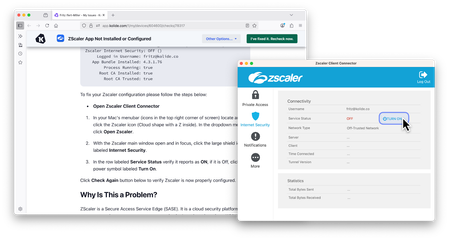
1Password is proud to announce a new integration with Zscaler, a leading cloud-based solution for Zero Trust network access (ZTNA). This marks a shared commitment to helping our customers secure access, reduce their attack surface, manage AI app sprawl, and practice the principles of Zero Trust. The 1Password® Extended Access Management platform is designed to support Zero Trust initiatives by securing every sign-in to every application from any device, including unmanaged devices and apps. Now, 1Password has built an integration between Zscaler and 1Password Device Trust to help mutual customers secure access and reduce risk. With this integration, customers using 1Password and Zscaler can be confident that critical applications are only accessible from trusted, healthy devices where Zscaler is installed and configured. Available to all 1Password Device Trust and Zscaler joint customers! Learn more about the integration announcement100Views2likes0Comments
Unable to recover account frozen from unsubscribed family.
Dear 1Password Team, I would like to escalate a serious issue regarding the recovery process that seems quite illogical and leaves users like me stuck without any viable solution. I was previously part of a Family plan on 1Password. After some time, the Family owner unsubscribed from the plan, and as a result, I was automatically logged out from all browsers. When I tried to log back in via the web, I received an error stating that my user account has been deleted. However, I still have access to my 1Password app on my iPhone where my data and vaults are still present — though marked as frozen. I attempted to generate a recovery code and followed the recovery procedure, but it ultimately failed. Now, as I am registering for a new Family plan, I find myself completely blocked from transferring or recovering my existing data, even though: My account and vault data still exist and are fully accessible on my iPhone. The app still recognizes my previous vault but simply locks new changes because of the frozen state. There is no official option to link this existing local data to my newly subscribed Family account. I find it quite unreasonable that the system offers no migration or recovery path despite the fact that my data is intact and accessible on my device. In effect, I am being forced to lose all my stored information and start over, solely because the previous Family owner unsubscribed. This creates a highly frustrating user experience and puts user data at unnecessary risk of loss. I believe 1Password should have a better solution for such scenarios — at the very least, provide a way to re-activate or migrate frozen local vaults into a new subscription. Please escalate this issue to your technical or product team. I look forward to your assistance and hope a reasonable solution can be provided. Thank you.100Views0likes1Comment