
dfibuch
August 27, 2026

Feedback: Universal sign-in, a new Autofill Experience

  • August 27, 2026
  • 166 replies
  • 431 views

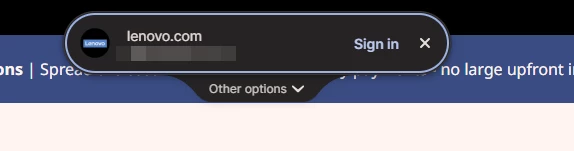
Noticed this morning this Sign in prompt when I go on a site that is stored in my 1P. Can’t find any info about it. Anyone got any ideas when it was released and do we have any control over it?



Pinned Reply By 1P_Dave

Hello folks! 

Thanks for all the feedback everyone has shared about 1Password’s new universal sign-in experience. 1Password now brings password, passkey, and other sign-in options into a single and convenient prompt for all of your logins. 

As we continue refining the new experience, based on feedback and reports from customers, the new experience has been temporarily turned off for 1Password Business users. If you use 1Password through your employer, you’ll see the classic experience for now. We plan to re-enable the new experience for business customers soon and will share updates as they become available.

If you use a personal 1Password account, and you’d like to use the classic experience too, you can follow these steps: 

  1. Right click the 1Password icon in your browser’s toolbar and select Settings.
  2. Choose Autofill & save from the side menu.
  3. Toggle off Use universal sign-in for logins.

-Dave

166 replies

September 7, 2026

The search on “new experience” doesn’t work at all. I have multiple sites where I have dozens of accounts to log on (M365 being one). I have passkeys for some sites, password for many more. 

Currently my options are: 
1) Use the “new experience”. But search doesn’t work. It matches the beginning of the account name (and with M365 accounts the relevant part is in the middle) or does something else crazy. Useless. 
2) Turn off the “new experience”. Search works, but due to some brain fart the developers have decided to disable focus to login field at the same time. I get passkey popups constantly so a simple login turns into a nightmare closing popups and clicking the field before I can type anything. 
3) turn off offering passkeys. Now I get autofocus to the right field, I have a search that works, but … I do have passkeys. How do I use them now? 


I’m not against new features or new versions even though I dislike the new look quite a lot. I’m against forgetting everything you’ve learned over the years and building a new system, killing the old way of doing this. This is now the 3rd password manager I’m on, and the 3rd that did exactly the same thing: perfectly working system that’s easy to use without having to mess around with mouse constantly, then they come up with a ‘new experience’ that is prettier but absolutely useless. 


Please fix this. I can live with the current system if I can just turn on back the autofocus to the login/password field rather than it being hijacked by the passkey prompt. Even better would be properly working filter function to the “new experience”. Even if I don’t like the look it’s more important it works, and I doubt I can convince you to drop that look anymore. 


What’s wrong with the search is: You have account “admin@peruna.onmicrosoft.com”. I need to be able to find that when I start typing ‘per’. If I come up with 50 others that contain ‘per’ I can keep typing ‘perun’ and only get those that match it. Exactly as it has worked so far. It’s all I need. I don’t mind if the passkeys and passwords are all in that same mix, that’s probably better. What I don’t want is having to reach for my mouse every 2 minutes just to close popups or to find a search function that works. 

September 8, 2026

I’m afraid I’ll have to disable it too.
Login experience has been pretty bad since the introduction of the universal sign-in, unless I am doing something wrong.

I am on macOS and I use Edge.

  1. The new login is not near the field I need to fill in. That means I’ll have to go back and forth with the mouse
  2. Often the old 1Password dialog on the right also appears
  3. Most importantly, the new universal login keeps appearing at the top of the screen on some websites even though there is nothing to login into. It’s incredibly annoying.

I’ll disable it for now.

1P_Dave
1Password Employee
1Password Employee
September 10, 2026

I’m sorry that the new sign-in experience didn’t work for you. If you decide to turn it back on in the future, and you still see issues, then let me know what website isn’t working correctly and I can take a look. 

-Dave

benmattison
September 8, 2026

I think I like Universal Sign-In but it is activating on every page on the website that I help run because we have an email address field in the footer for subscribing to our newsletter. It would be great if it could figure out that that is not actually a sign-in but barring that, how about an option to selectively disable it, perhaps in the “Options” area?

Also, I would vote no on the animation in the popup, which is distracting. 

1P_Dave
1Password Employee
1Password Employee
September 10, 2026

Thank you for the feedback! 

This is a known issue on a few different sites, so that we can get this fixed, can you share a little more information about these sites with our support team: 

  1. Open the website in question and sign in.
  2. Wait until you see the sign-in prompt appear when you’re already signed in. 
  3. Right-click on the page and click "1Password - Password Manager" > Help > Collect Page Structure. 

Attach the resulting JSON file to an email message addressed to support@1password.com

With your email please include:

You should receive an automated reply with a Support ID number. Please post that number here. Thanks very much!

-Dave

September 8, 2026

Recently, 1Password started showing two pill-style popups on websites I am about to log in to, along with a workflow that seems to do nothing. See the attached screenshot.

The first pill shows the name of the website I am on with a suggestion to “Sign in”. Clicking it makes 1Password attempt to log in, but then it displays the second pill, “Go to the sign in page to continue”. Then it stays there, doing nothing.

But what’s the purpose? When users are not logged in, they can navigate directly to the sign-in page. Are there click savings I'm missing? Maybe it is a way to have a unified, clearly marked pill that takes users to the login page?

1P_Dave
1Password Employee
1Password Employee
September 9, 2026

@rahavd 

It sounds like you tried using the new sign-in experience to sign into a website and it wasn’t able to completely finish the process. On websites where 1Password can’t finish the sign-in process, you’ll see the “Go to the sign in page to continue” prompt so that you know how to finish signing in.

Are you able to share the address of the website where you saw this so that I can take a look? 

-Dave

September 9, 2026

This new feature does not complete the login process on many sites. Picking up on a trusted one, check out LinkedIn.

September 8, 2026

I was only going to comment once, but then this morning I’m being prompted to use the new login despite already having it disabled. 

Never, ever turn on things users have disabled. Ever.

1P_Dave
1Password Employee
1Password Employee
September 9, 2026

@greyhodge 

That definitely doesn’t sound right. Which browser are you using and do you clear your browser’s history cache? Or use any sort of app cleaners? 

-Dave

September 8, 2026

I’m using a Macbook with Chrome browser extension. 

Before the upgrade to Universal Signin functionality I could use my passkey by simply clicking on the login prompt sent from 1Password.  Now, after upgrade, it asks me to enter my Mac password (or biometrics) in order to sign in with the passkey.  Why this change, and can I get it working the “old” way which was faster/simpler? Button click vs. entering a password. 

1P_Dave
1Password Employee
1Password Employee
September 9, 2026

@LTskier 

Thanks for the question! Whenever you visit a protected site, 1Password checks the authentication level requested by the site and prompts you for additional verification when needed. This helps ensure that passkeys grant the right access to the right person every time.

User verification is part of the passkey specification, and 1Password’s new sign-in experience now fully supports it. The classic experience didn’t support this functionality, you can revert back to it if you wish with these steps: 

  1. Right click the 1Password icon in your browser’s toolbar and select Settings.
  2. Choose Autofill & save from the side menu.
  3. Toggle off Use the new autofill experience for sign in.

-Dave

September 9, 2026

Thanks ​@1P_Dave - I disabled that yet it still requires the Mac password to use the passkey. Any other suggestions? 

PS - I presume the settings option is actually named “Use universal sign in for logins”.  There is no setting worded like your step 3. 

September 8, 2026

This isn’t working well with passkeys in Edge on Windows.  I’ve turned it off for now.  Coworkers of mine are on Mac/Chrome and don’t see the option to turn this off.

1P_Dave
1Password Employee
1Password Employee
September 9, 2026

@IanMIam 

I’m sorry that you’re running into an issue when signing into a website using a passkey. Are you able to share which website you ran into the issue on? And was the issue creating a passkey? Or signing into the website with a passkey? 

Coworkers of mine are on Mac/Chrome and don’t see the option to turn this off.

Have them make sure that they’re running the latest version of 1Password in the browser: How to keep 1Password up to date in your browser

-Dave

September 9, 2026

Thanks, Dave, for reaching out.

This is to an internal SSO site.  The regular autofill behavior works fine, the popup presents the passkey pill to click.  The new popup just doesn’t happen at all.  I uninstalled and reinstalled the extension (8.12.34.34) to no avail.

I’ll go to a different thread to note that it also isn’t connecting to the desktop app anymore, so I have to login to the app and to the extension now.

September 8, 2026

Running into the same issue in our enterprise. Passkeys no longer work and throws a “we could not fill your login information”. Once we disable the new experience in the extension settings, it works again. This is a huge inconvenience! 

Any eta on when a permanent fix will be rolled out? it is not feasible to have us instruct individual users to disable this setting.


1P_Dave
1Password Employee
1Password Employee
September 10, 2026

@bran1830 

I’m sorry that signing in with a passkey isn’t working with Duo. Can you reproduce the issue again and then I'd like to ask you to create and share a 1Password diagnostics report from 1Password in your browser:

Send a diagnostics report (browser extension)

Attach the diagnostics to an email message addressed to support@1password.com

With your email please include:
- A link to this thread: https://www.1password.community/1password-at-work-58/feedback-universal-sign-in-a-new-autofill-experience-25394?postid=139004#post139004
- Your forum username: bran1830

You should receive an automated reply with a Support ID number.  Please post that number here.  Thanks very much!

-Dave

September 9, 2026

I like the new feature, but it’s currently not working for me.
I have several credentials stored in my vault that share a common domain, but have different subdomains. E.g.:

When I click over a login field (E.g. username), 1Password already take this into account and the first suggested credential to complete the fields is the one matching the full subdomain+doman. The new autofill feature always suggest the same one, even if the subdomain doesn't match. I have this (heavily redacted) capture where I hope you can see the problem. In green, the real URL, and the right first suggestion if I click over the field. In red, the wrong suggested credential by the new autofill feature:

The autofill feature should follow the same rules for suggesting the right credential for the current site as the rest of the app features.

1P_Dave
1Password Employee
1Password Employee
September 10, 2026

@mmm 

I’m sorry that you’re seeing certain logins unexpectedly suggested. Can you try the following: 

  1. Update to 8.12.36: How to keep 1Password up to date in your browser
  2. Make sure that the items in question have “Only fill on this exact host” selected as the autofill behaviour: Change where a login is suggested and filled

Let me know if you still see the same behaviour. 

-Dave

September 16, 2026

> Update to 8.12.36: How to keep 1Password up to date in your browser

I already have that version, otherwise, I wouldn't be leaving feedback about Universal Log-in, a feature that was released in 8.12.36.

>Make sure that the items in question have “Only fill on this exact host” selected as the autofill behavior: Change where a login is suggested and filled

I will try this. However, the issue I reported remains independently of that setting: the extension has two ways of suggesting items to login: the login fields in the web page, and the universal log in. Both are using different algorithms to suggest these items.

September 9, 2026

So since a recent update the 1Password extension on Safari shows the above style ‘Sign In’ bubble on websites.

On some, it appears despite being signed in, and in one example when I tried the ‘Sign In’ it was trying to fill in a Newsletter signup box. This might be poor design on that site, but the behaviour of this new element is getting in the way of my workflow rather than helping.

It seems to break the previous method of signing in via the sign in boxes (log in text will appear, then vanish, and above sign in bubble appears.

Is this mandatory behaviour for the Safari Extension? Is there a way to turn this feature off for now?

Alternatively, is there a keyboard shortcut to activate the ‘Sign in’ in the bubble, as at the moment I have to use mouse to do it rather than keyboard which is slowing my workflow. 


1P_Dave
1Password Employee
1Password Employee
September 10, 2026

@dp006 

Thank you for reporting these issues! I’ve reproduced the same issue with evanscycles.com and I’ve filed a bug report to have our development team get this fixed. 

Since the universal sign-in prompt is automatically focused when it appears on a page, you can use the keyboard to sign-in when you see the sign-in prompt by pressing Enter or Return key.

You can turn off the feature if you wish by following the steps in the pinned post here

-Dave