Level up your business security with free, on-demand training and certification. Explore 1Password Academy today →
Forum Discussion

justinhaynes
4 months agoNew Contributor
How do I transition from 1:1 mapping of authentication and authorization to simpler options?
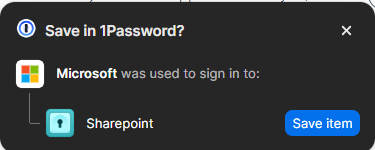
I have never taken the following suggestion for fear of not knowing what would happen next. I don't know what would happen next, because I have multiple Microsoft accounts and access multiple SharePo...

1P_Timothy Community Manager
4 months agoCommunity ManagerHi justinhaynes! Thanks for writing in.
The feature you're asking about here is commonly referred to as "sign in with". The core concept of this feature is to make it easier to sign in when you're using a sign in provider rather than username and password, or a passkey. After saving a "sign in with" item 1Password remembers which sign in provider you used (particularly helpful on sites that give a long list of options), then helps you sign in with that sign in provider. Our blog covers some of the initial concept for this feature, and you can find more practical how-tos in our guide:
- “Sign in with” anything – and save it in 1Password
- Use 1Password to sign in to sites with supported providers
For your use case, updating your SharePoint items as you sign in with Microsoft might make the most sense. This would help avoid duplicating anything, and wouldn't alter any organizational systems you're currently using. When you see the prompt shown in your post, you can click Save item, then select Update Existing rather than saving a new item. Alternatively saving a new item for each SharePoint could also work, updating the title of each to distinguish them.
If you find the "sign in with" feature doesn't work for your setup, you can also turn these prompts off in the browser extension from Settings > Autofill & save > Offer to save "sign in with" logins.
Let us know if you have any questions, and thanks again!