Our community is getting an upgrade on July 2nd! Learn more in the FAQs →
ios
3268 Topics
New Feature "Expiry date" - Where is the alert?
I would like to know if I just don't understand it or if it doesn't work. I have added a date to an item and set an alarm for the day before. But no alarm appears on the day of the alarm?! I can only see that the item is expiring or about to expire when I navigate to the item itself or look in the watchtower. However, I understand "alert" to mean something else. My expectation is that there is either a notification from 1Password or I at least get some kind of indication on the main screen, e.g. a newly introduced category "expired" with a red 1 on it or something. Is there anything else planned, as I don't find it very helpful as it is now.Solved4.3KViews13likes39Comments
iOS: Tapping edit on an item will open a previously edited item in certain cases
Similar issue as this post (which was closed so I couldn't just reply): https://1password.community/discussion/138397/1password-opened-to-edit-screen I've been doing a lot of work with 1 password today, and everytime I choose 'edit' for an item on the iphone, it opens the edit window for the PREVIOUS item. In other words: I search for an amazon password I edited and save data for that entry I search for a google password I click edit on that google password The edit window opens, but it's for the AMAZON password Actually lost a password to this today, and I'm kind of stunned. Was using both desktop and iphone versions (because I was transitioning from Authy to 1Password for 2fa and needed my phone's camera for the QR codes). Saved password on desktop and iphone for 1 item. Edited it on desktop. Switch to iPhone, searched a totally different item. Clicked edit, and it opened the PREVIOUS item. I couldn't choose to simply close. Had to "save" or "discard". Chose save, and it overwrite the edit on the desktop with the previous data which had not reached the iPhone via the cloud yet. 1Password Version: 8.10 Extension Version: Not Provided OS Version: macOS 14 and iOS 17.2 Browser: mac App and iOS App2.6KViews8likes73Comments#ME-271 feedback: Inline menu hidden in Safari on iOS when system AutoFill is enabled
Hello, I recently noticed that a lot of login forms were no longer showing the 1Password drop-down to select a credential. I believe it is related to this change referenced in the title. Simply put, I prefer the browser extension to select credentials for logging in. It handles OTP codes faster and easier than the system autofill in iOS/iPadOS. Instead, using the system autofill requires extra taps, needlessly populates the clipboard with OTP codes, and generates notifications about the OTP being copied to the clipboard that I'm frequently needing to dismiss. I'm not sure if this is something that can be made optional in the browser extension settings, but I strongly dislike this new behavior and hope that it will be reverted to the previous behavior, or at least made optional. Thank you.Solved3KViews8likes72Comments
New feature: Add tables to Secure Notes
I'd love to be able to move my more sensitive notes into 1Password, but need the ability to create tables. A markdown format using the | character to create a table would more than suffice. For example, | Name | Age | | Jae | 23 | could create a table with two rows and two columns 1Password Version: Not Provided Extension Version: Not Provided OS Version: Not Provided Browser:_ Not Provided1.3KViews7likes8Comments
Request: Turn off username guessing in the apps [RESOLVED]
When I go to create a new login, the user name is prefilled with an email address I haven’t used in years. This shouldn’t have any email address, especially when I use Fastmail’s masked emails. I hope this is a bug and not a normal thing. 1Password Version: 8.10.56 Extension Version: Not Provided OS Version: iPad 18.2 and iOS 18.2 Browser: Not ProvidedSolved3.3KViews5likes85Comments
Creating masked emails in the app?
I started using Fastmail and the masked emails feature. It works great, until it doesn’t. If I can’t get the safari extensions to show the create masked email option (usually from poor website design), the only other option is to sign into Fastmail and create one from there and then I have to go back to 1Password to input it to there and then finally back to the website. Why is there no way from within the app to generate these emails?Solved1.5KViews5likes26Comments
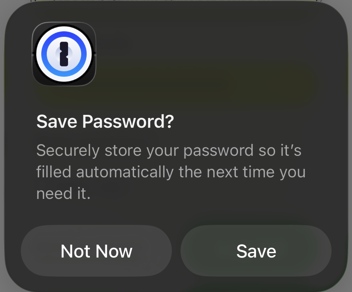
On iOS/Safari how do I stop 1Password suggesting to save passwords filled out by 1Password
This is starting to drive me nuts. In the last couple days or so, whenever I use the login autofill function in Safari, the one above the keyboard, I get a popup asking to save the password in 1Password. That is, the login I have just filled out using 1Password, I am being asked to save in 1Password. This dialog: No setting I can find gets rid of the popup. I have tried disabling the 1Password Safari extension but this doesn't seem to be involved at all. I have looked through the 1Password app but can't find any option that gets rid of it. I have also tried disabling the "suggest strong passwords" features in iOS settings, but it doesn't get rid of it either. Only times I don't get the popup is when the 1Password Safari extension decides to work, which is perhaps about half the time, and actually shows the little 1Password icon in the login fields, allowing me to select the login. If I manually open the 1Password Safari extension and select autofill, I get another dialog asking to update the password instead, despite the fact the password and login URL are already present and recognized by 1Password, at least so far as the autofill is concerned. This is on iOS 26.4 using Safari. 1Password app version is 8.12.10.Solved609Views5likes22Comments
Autofill no longer works on HTTP pages; iOS shows white blank screen
I’m running into an issue where 1Password can’t fill on any http:// pages across multiple platforms, and on iOS it can even result in a white/blank screen when I try to fill. What’s happening iOS (1Password app + Safari extension): On http:// pages, 1Password cannot autofill. When I invoke 1Password to fill on an HTTP page, the 1Password UI becomes a white/blank screen. Chrome / Edge extension (desktop): Autofill does not work on http:// pages at all. macOS app / Safari (macOS): Same behavior — no filling on http:// pages. Expected behavior I understand HTTP is insecure, but I still expect either: autofill to work (possibly with a warning/confirmation), or a clear message explaining that filling is blocked on http:// pages — not a blank/white screen on iOS. Notes / why this matters These http:// sites are mostly local network / self-hosted services that don’t have HTTPS enabled yet (or are reachable only via LAN IP/hostnames). So “just use HTTPS” isn’t always possible. Also, I saw other reports that HTTP filling stopped working recently in some extension versions (people mentioned it worked again after downgrading), so I’m wondering if this is a regression. 1password.community Steps to reproduce (iOS) Open Safari on iOS and go to an http:// login page (example: http://[local-address]/login). Tap into the username/password field and try to fill with 1Password (AutoFill or Safari extension pop-up). Result: no autofill; in some cases the 1Password UI turns into a white/blank screen. My environment iOS: 26.2 1Password for iOS: 8.11.22 macOS: 26.2 1Password for macOS: 8.11.22 Browser: Chrome 143.0.7499.170 / Edge 143.0.3650.96 / Safari 26.2 (21623.1.14.11.9) 1Password browser extension: Chrome/Edge 8.11.27.2、Safari 8.11.22.27 What I’ve tried Restarted browser(s) and device(s) Updated 1Password apps and extensions Re-enabled / reinstalled the extension(s) Confirmed the Login item is correctly associated with the site Could you confirm whether filling on http:// pages is supposed to be blocked now, and if not, whether this is a known bug/regression? If you need diagnostics/logs, tell me what to collect and where to send them.Solved800Views5likes9Comments
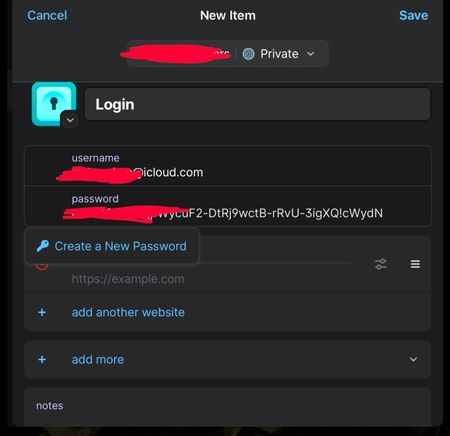
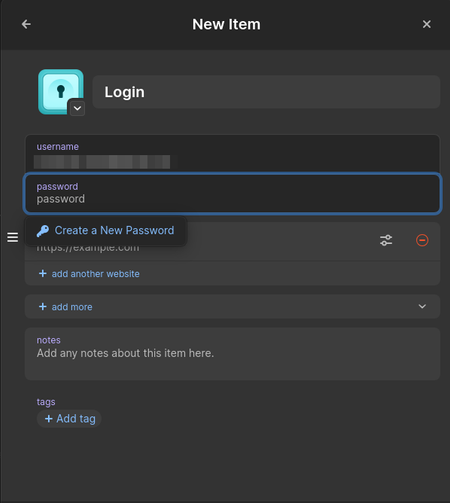
New item login field already populated
Hi, When I create a new item in the Linux, Android and iOS 1Password apps, the login field is already populated with an email address and focus is set on the password field. How to change that? I would like it to be empty. It is especially annoying because in my case, it is filled with a an email address I am not using that often. This change of behavior seems to be relatively recent. Thanks for your help. SpacehogSolved2.1KViews5likes33Comments
Add the Search Icon or add a shortcut.
I am incredibly confused on why the search icon would be removed. It is so awkward to click on the search bar. Why I have to search is because autofill fails which is becoming increasingly common or app dev didn’t register a domain name with their app no there are no associations. There is more but regardless the ability to initiate and clear a search is basic functionality. I’d love to see the search icon brought back another option can be to make a user preference on what the double tap on items does, e.g. brings back to the items page or brings back to the items page and opens a search. This preference could be turned off by default. Please add this. 1Password Version: 8.10.52 Extension Version: Not Provided OS Version: iOS 18.1.1 Browser: Not ProvidedSolved1.2KViews5likes35Comments